What this guide helps you do
Choose the currency Krobr uses for package charges, understand the separate currency balances, and distinguish billing currency from each store's product currency.
Before you start
Sign in as the business owner. Inspect balances and your upcoming renewal first. Changing currency is not a foreign-exchange operation and does not move money between balances.
Where to find it
Workspace → Settings → Billing currency; on a phone More → Settings. Partner → Settings → Currency changes the selected store's selling currency instead.
Step by step
-
Open Billing & Usage and note the current billing currency, paid package period, and balances in each currency.
-
Go to Settings → Billing currency and read the explanation about future renewals.
-
Select PKR, USD, EUR, or GBP as offered, then choose Save currency.
-
Wait for success and return to Billing & Usage. Confirm public package prices and the next renewal amount now use the intended billing currency.
-
Check whether you have enough balance in that currency for the next charge. Money held in another currency will not automatically cover it.
-
Arrange a top-up in the intended currency through the real payment instructions/partner before renewal if needed.
-
Open an older invoice to confirm it retains its original currency. The store's product prices also retain their separate store currency unless changed separately.
Understand the choices
-
Billing currency chooses which balance funds future package charges. Existing balances remain separate by currency.
-
Past invoices/payment entries retain their stored currencies; they are not restated at an exchange rate.
-
Store Currency belongs to the store's catalog/orders, while Billing currency belongs to the account package.
-
Changing a currency does not immediately renew or change the package by itself.
Check the result
Future billing previews use the selected currency, while your balances, historic invoices, and store order currencies remain identifiable in their original currencies.
If something goes wrong
-
Balance seems missing: look at its own currency line rather than only the newly selected billing line.
-
Renewal failed after changing currency: top up the selected currency and inspect the grace notice.
-
The store still shows another symbol: change store Currency separately only after reviewing product/fee amounts.
Screenshots
These screenshots use demonstration data. Your names, amounts and available controls may differ. Current values on your own screen take priority.
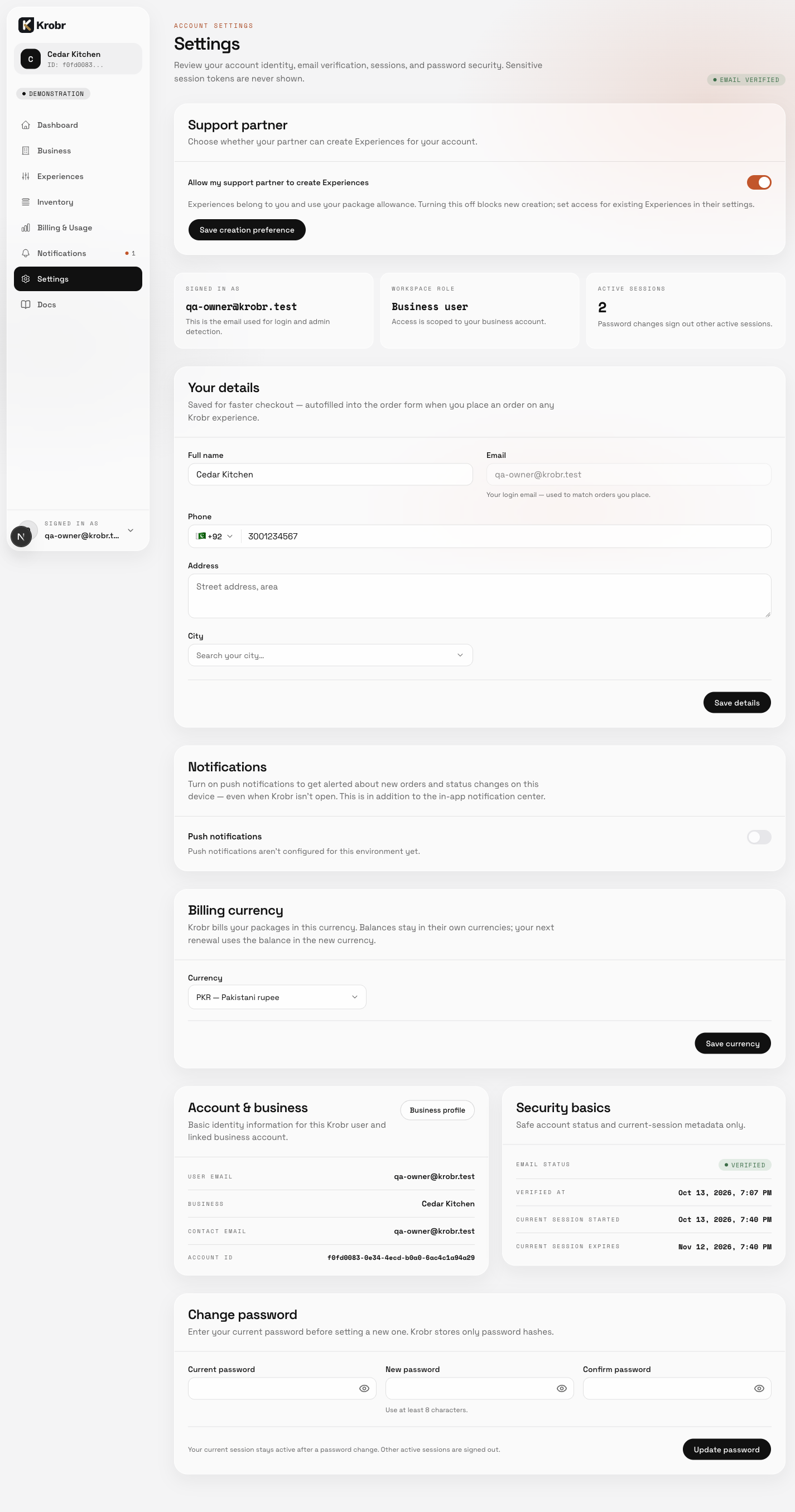
Open Settings from the workspace sidebar. This English example shows the Settings entry point, profile area and Billing currency controls; the Language card is not included in this capture. It does not show a completed currency change.