What this guide helps you do
Follow your order's live state, save the private tracking link, show its QR at the store, and find or claim orders through My Submissions when available.
Before you start
Keep the link shown after a successful order. Anyone holding that private link can access the permitted customer order view, so do not post it publicly. For My Submissions, sign in with the matching verified email.
Where to find it
Open the post-order private status link. In the workspace, My Submissions appears once the account has placed/linked orders; on a phone find it behind More.
In My Submissions, opening a linked order takes you to its private status page on the store’s public address in a new tab. A claimable order has no private link until it is linked to your account.
Step by step
-
After placing the order, save/bookmark the private link and note the visible order number.
-
Open it to read the current status, method, items/options, price recap, ETA where offered, and store message.
For a shop pickup, progress reads Order placed → Packed → Ready for pickup → Picked up. Packed means the order is packed; wait for Ready for pickup before collecting it. Pickup orders show the store location and order QR, without courier tracking or an arrival date.
-
Allow the page to receive live updates while connected. If it reports lost connectivity, reread/refresh after reconnecting rather than assuming the old status is current.
-
For a bank order, follow payment instructions and upload proof only through that order's payment controls.
-
At pickup/dine-in or another handover, tap the order QR to enlarge it and show staff. The number under it is the typed fallback.
-
Use customer cancellation/correction/review controls only when the current state offers them.
-
Sign in to the workspace with the email used for the order and open My Submissions. If a claimable order is offered, inspect its details and use the claim action.
-
Verify the order appears in your list after a successful claim. A failed claim should show a recovery message; restore connectivity and retry that claim rather than making another order.
-
Open any list entry to return to its tracking page. Losing the list shortcut does not invalidate the private link you saved.
Understand the choices
-
The status page is a customer view. Staff's authoritative operating buttons belong in Partner with the correct permissions.
-
Payment state, order state, and a pending correction can have different labels. Follow the action description shown for your method.
-
Claiming links an eligible existing order to your account; it does not change its items, price, or status.
-
Older submitted items/prices are snapshots. Today's product changes do not rewrite the order you already placed.
Check the result
You can return to the same order and see its latest permitted customer state. My Submissions provides a shortcut for linked orders without creating copies.
If something goes wrong
-
No My Submissions entry: the account may not have an eligible placed/linked order yet.
-
Cannot claim: verify the matching email, eligibility, and connection; no one can claim a different person's order by typing its number.
-
The page stopped updating: restore connectivity and reread the order, keeping the same link.
-
Private link lost: check a saved bookmark/list or the store's legitimate support process; a public store QR is not the order link.
Screenshots
These screenshots use demonstration data. Your names, amounts and available controls may differ. Current values on your own screen take priority.
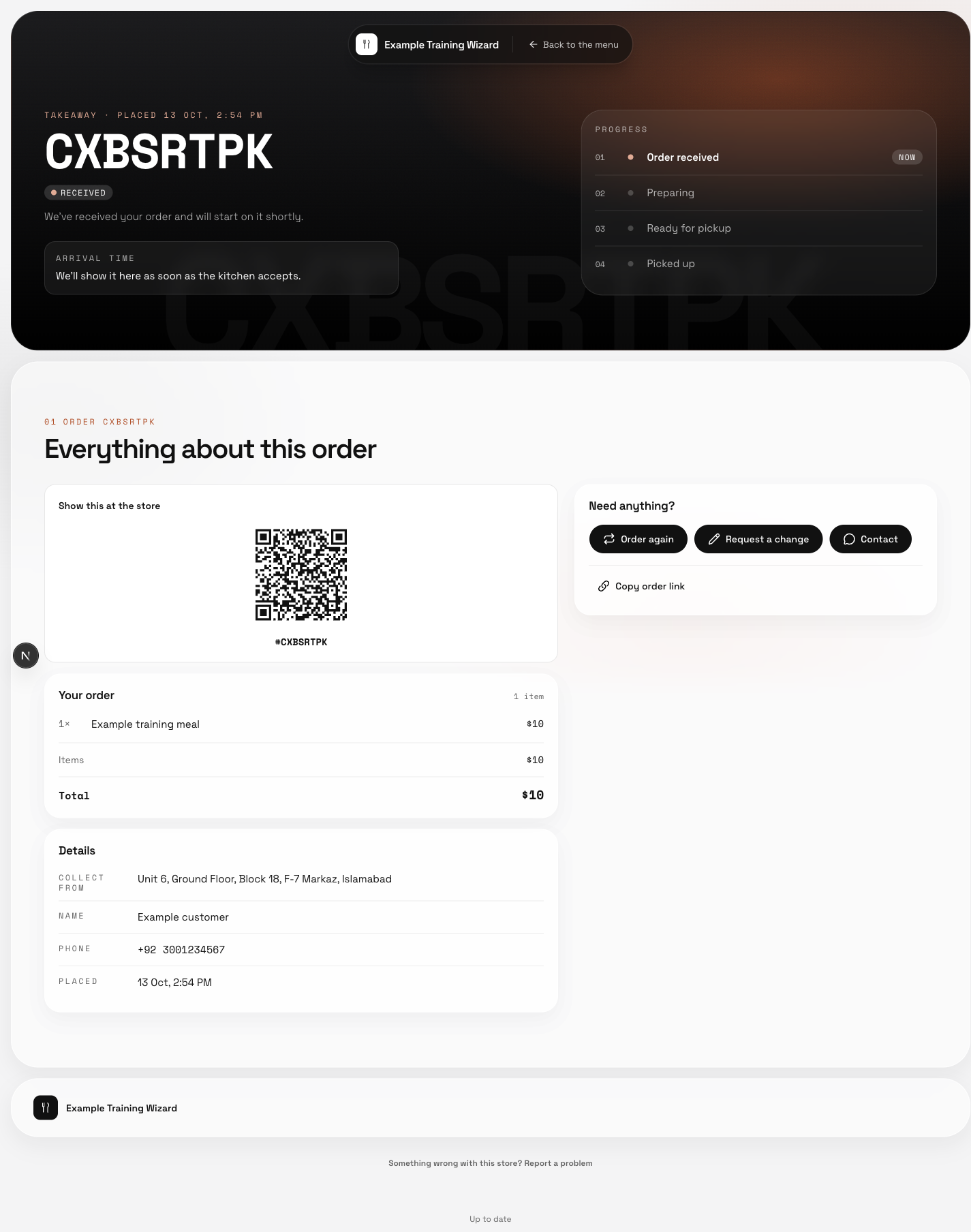
The same order page shows current progress, its short code and permitted follow-up actions.
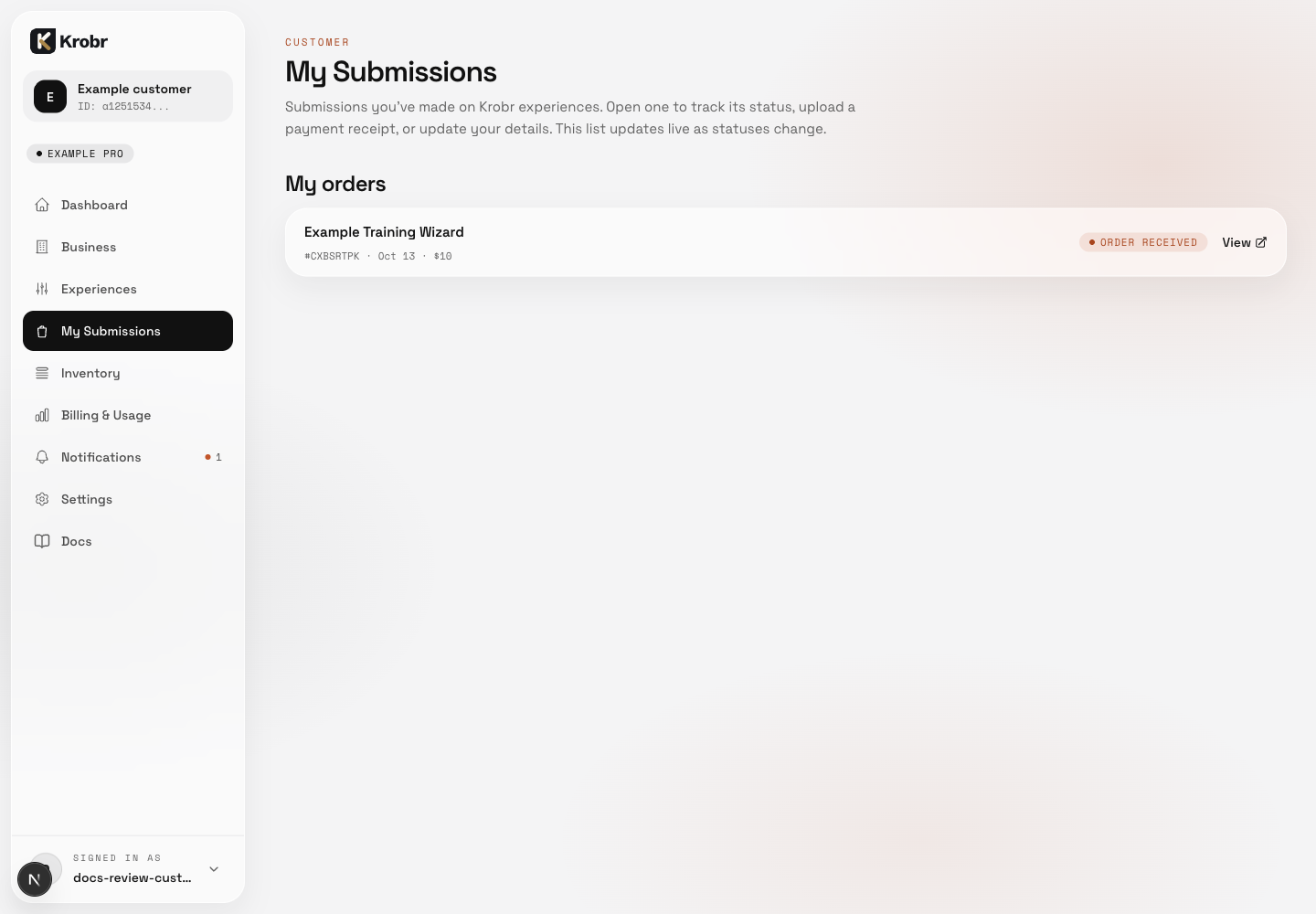
A signed-in customer can return to their linked order through My Submissions.