What this guide helps you do
Understand how a selected template becomes your own editable catalog, what a cloned store copies, and which bulk-import options are actually available today.
Before you start
Choose a launchable restaurant/shop template or a store you own. Prepare your real prices and descriptions; demonstration products are starting examples, not your final business catalog.
Where to find it
Use the Theme step in Create experience for template copying, or the Clone card on an existing store. Edit copied products in Partner. Partner's catalog has no import button for an existing store; when creating a new store, the wizard's Start step can import a store file instead (Set up a store from a file with AI).
Step by step
-
During store creation, preview a template, then explicitly select it if you want its starting items.
-
Review the Menu/Products step and replace demonstration names and prices with your own values. Template items arrive complete; More details on an item opens its full editor for photos, sizes and add-ons or SKUs, badges and old prices.
-
Confirm the currency. A template's delivery fees are copied only when your store uses the template's currency; item prices are copied as written, so a different currency needs real prices rather than simple relabeling.
-
Complete the wizard and open Partner. Template items have become normal editable catalog records for this new store.
-
For a clone, inspect the copied catalog, variants, images, and operating settings before publishing the new draft.
-
To bring a separate list of products into an existing store, add them through Partner's normal categories/product editor. Do not paste a spreadsheet into a field that only accepts a product name or description. For a new store, upload a store file on the wizard's Start step instead.
-
Use data export when you need a CSV/PDF copy of the existing catalog. Exporting is not an import or automatic synchronization tool.
-
Verify the public menu after editing the copied records. Later base-template updates do not automatically change your store.
Understand the choices
-
A template copy is independent. It is not linked to the original for future product updates.
-
Restaurant categories stay flat; shop categories may have one child level. Template data follows the store category's rules.
-
Shop simple products receive a default SKU; configure dimensions and inventory in Partner when needed.
-
There is no promise of external catalog/menu synchronization in the current app. Use the controls actually present rather than instructions for a future integration.
Check the result
Your Partner catalog contains the reviewed real products and prices, with no expectation that editing a base template or exporting a file will synchronize the store automatically.
If something goes wrong
-
The template was only previewed: return to the selection step and choose it before continuing.
-
Copied fees use the old currency: correct the store's monetary settings and any text that mentions an amount.
-
Looking for CSV import: create the store with Upload a store file on the wizard's Start step. An existing store has no import button in Partner; use normal product entry there and keep export as a separate operation.
Screenshots
These screenshots use demonstration data. Your names, amounts and available controls may differ. Current values on your own screen take priority.
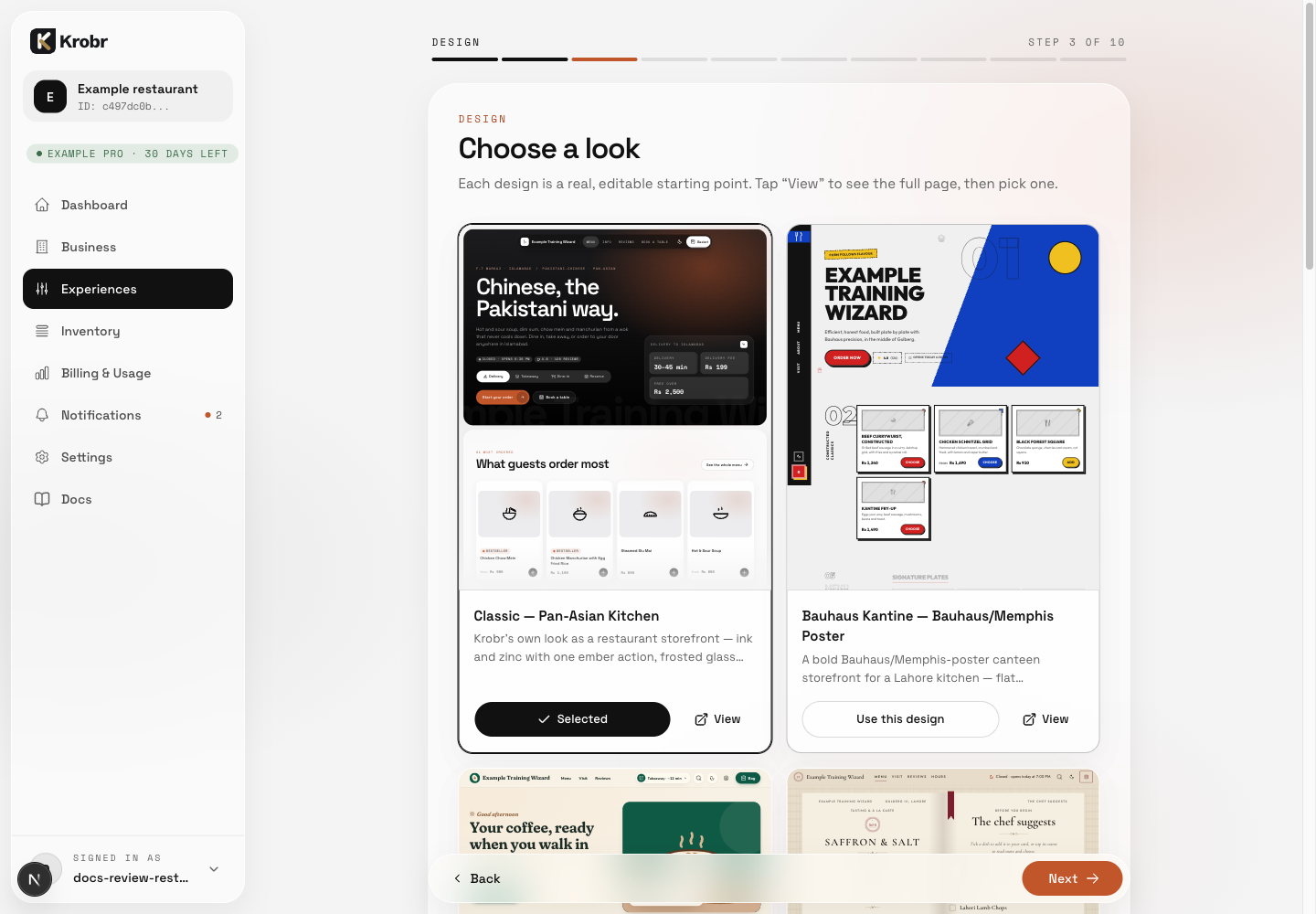
View opens the demonstration; Use this design explicitly selects its starting template.