What this guide helps you do
List your store on the Krobr marketplace, find out why a store is not listed and fix it, and understand where your store appears and how it is ranked.
Before you start
Only the store owner can turn listing on; team members do not see the card. Listing needs a package that includes the marketplace. Restaurants and shops can be listed. Your store needs a delivery country in its delivery coverage, online ordering turned on and at least one item customers can order.
Where to find it
Partner → Settings → Marketplace; on a phone More → Settings. Delivery coverage is in Partner → Delivery. Shoppers find listed stores at marketplace.krobr.com.
Step by step
-
Open Partner → Delivery. Under Delivery areas, turn on Limit delivery to specific areas, choose the Delivery country and, if you deliver only to parts of it, add the cities and areas. Save changes.
-
Open Partner → Settings and find Marketplace.
-
List on the Krobr marketplace is on by default for packages that include it. Leave it on to list your store, or turn it back on if you previously disabled it. On Free, the switch appears off and locked, and the message explains that your store and items are not shown. Use Open Billing & Usage to upgrade your package.
-
Read the status under the switch. Listed on the marketplace means shoppers can find the store. Otherwise a line starting Not listed gives the reason; fix it using the list below.
-
While the store is listed, use View on marketplace to see it as shoppers do.
-
To stop listing, turn the switch off. The store leaves the marketplace; your storefront keeps working as before.
Understand the choices
-
Each reason a store is not listed, and its fix:
- Not turned on: turn on List on the Krobr marketplace.
- Package does not include the marketplace: A package downgrade hides the store and items and makes the switch appear off and locked. Your saved preference is kept; after upgrading, a saved on preference becomes active again once every listing check passes.
- Store is not online: put the store back online. Draft, offline, archived and suspended stores are not listed.
- Demo store: demo stores are never listed.
- Store type not listed yet: only restaurants and shops are listed today.
- No delivery country: set a country in Partner → Delivery. This applies even if you only offer pickup, dine-in or reservations.
- Online ordering is off: turn ordering on.
- No items to list: make at least one item visible and in stock with a fixed price. Items whose price is worked out by a formula are not listed.
-
Delivery coverage decides where you appear. Coverage of a whole country shows your store for every city and area in it. A whole city shows it for every area of that city. Specific areas show it only for those areas. Your street address is not used.
-
How ranking works, in plain words: open stores always come before closed ones. Among them, Recommended favours stores with good reviews, steady completed orders, few cancellations and orders that are ready on time, with a short boost for stores and items that are new on the marketplace. Shoppers can also sort by newest, price or rating.
-
Marketplace orders arrive like any other order, in Partner Orders, priced by your own checkout. The shopper places the order on your storefront.
-
Hidden, sold-out and snoozed items leave the marketplace on their own, and return when they are available again.
Check the result
The status says Listed on the marketplace, and View on marketplace shows your store and items for a location your coverage serves. A test search for your store name on the Stores tab finds it.
If something goes wrong
-
The switch is locked: your package does not include the marketplace. See the package guide.
-
Not listed, no delivery country: open Partner → Delivery, turn on Limit delivery to specific areas, choose the country and save.
-
Listed, but shoppers in a city cannot see you: check that the city (or its area) is in your delivery coverage, and that the shopper's location matches it.
-
An item is missing: check that it is visible, in stock, available at this time of day and has a fixed price.
-
Your store shows Closed: shoppers can keep your items in their cart but cannot continue until you open. Check your hours, pause and busy settings.
-
A change has not appeared yet: the marketplace updates shortly after each change, and again every night.
Screenshots
These screenshots use demonstration data. Your names, amounts and available controls may differ. Current values on your own screen take priority.
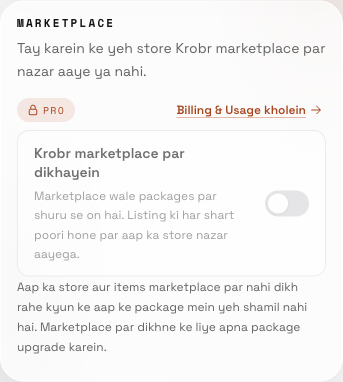
Free package example in Roman Urdu: the switch is off and locked, with an upgrade message. The store and its items remain unlisted.
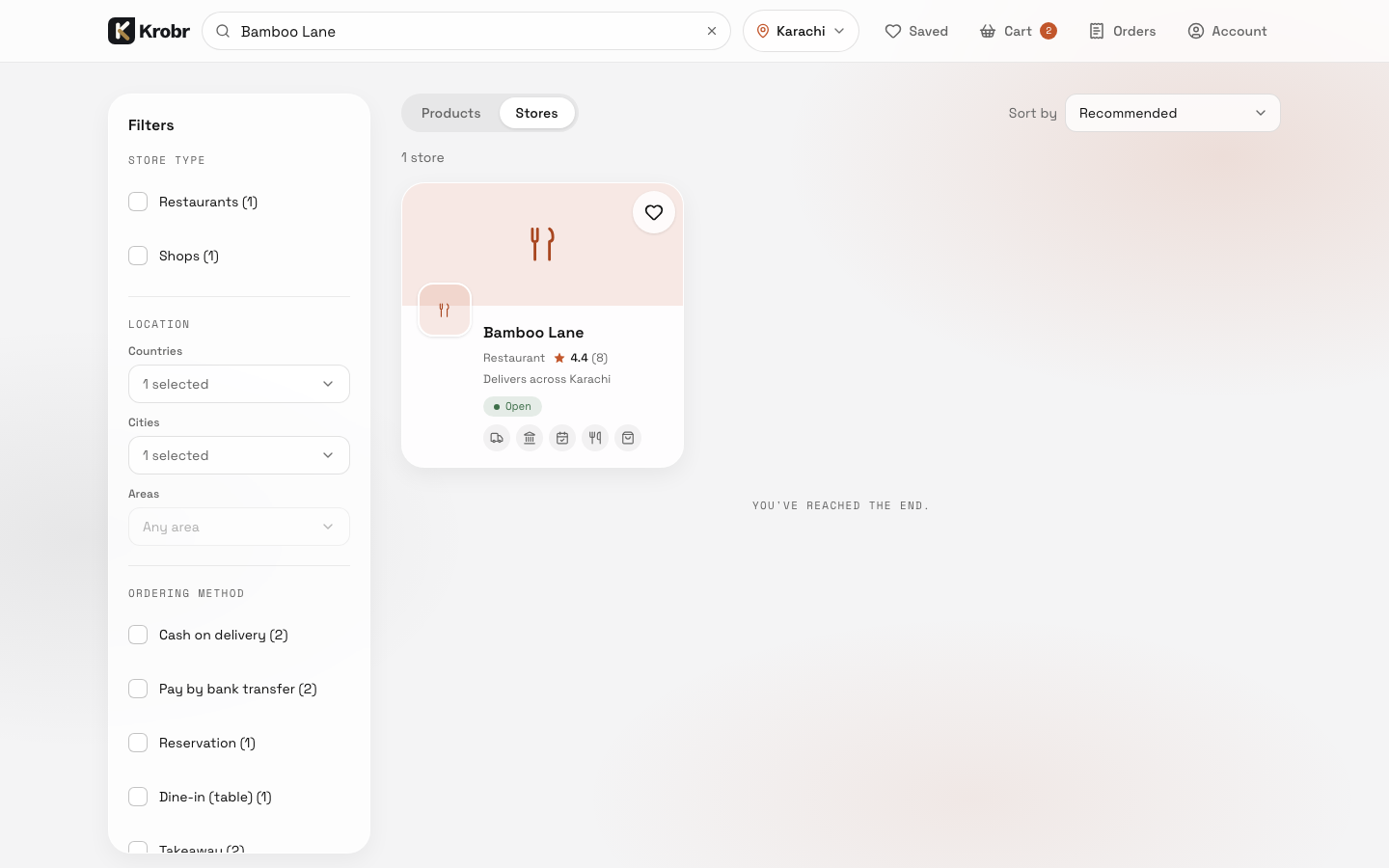
View on marketplace opens the Stores tab searched by the store name.