What this guide helps you do
Save the business account's name, contact email, phone, and WhatsApp number so Krobr and your support partner can reach the owner.
Before you start
Sign in as the business owner. Have a working phone number and its country code. These are owner contact details; your store's public telephone, location, currency, and timezone are managed separately.
Where to find it
Workspace → Business. On a phone choose More → Business. If publishing is blocked by a missing phone, the displayed link opens this field directly.
Step by step
-
Open Business and review Business Name. Enter the name of the organization that owns the account.
-
In Contact Email, enter the address you want Krobr to use for owner communications. This does not change your login email.
-
In Phone, select the country dialing code, then type the owner's number. Remove duplicated country codes or invalid characters.
-
If the owner uses another number for WhatsApp, enter it in WhatsApp Phone. Leave an optional field empty when you do not want to supply it.
-
Choose Save Profile and wait for the success message. Correct a field highlighted by validation and submit again.
-
Reload Business to confirm the saved details. Return to the store overview and retry Publish if the phone was the only blocker.
Understand the choices
-
Business Name belongs to the account. Individual stores may have their own display names.
-
Contact Email is an owner-contact address; the sign-in email remains visible in Settings.
-
Phone is required before a store can be published. A WhatsApp number alone does not satisfy the primary-phone requirement.
-
Your support partner can also enter or change this Phone while creating a store for you; the partner’s new number then appears here. If you changed your Phone in the meantime, or the store could not be created, your number stays. A partner cannot change your WhatsApp number.
-
Store contact fields are customer-facing. Changing owner contact details does not replace each store's telephone or address.
Check the result
The new values remain after reload. A publish warning for the missing owner phone disappears once a valid primary phone is saved.
If something goes wrong
-
Phone is invalid: check the selected country and type the national number as the Phone field requests.
-
Publish is still refused: read the remaining verification, package, or store-status message; saving a phone resolves only the phone requirement.
-
Customer phone did not change: open Visual Editor → Contact or Partner's store settings instead.
Screenshots
These screenshots use demonstration data. Your names, amounts and available controls may differ. Current values on your own screen take priority.
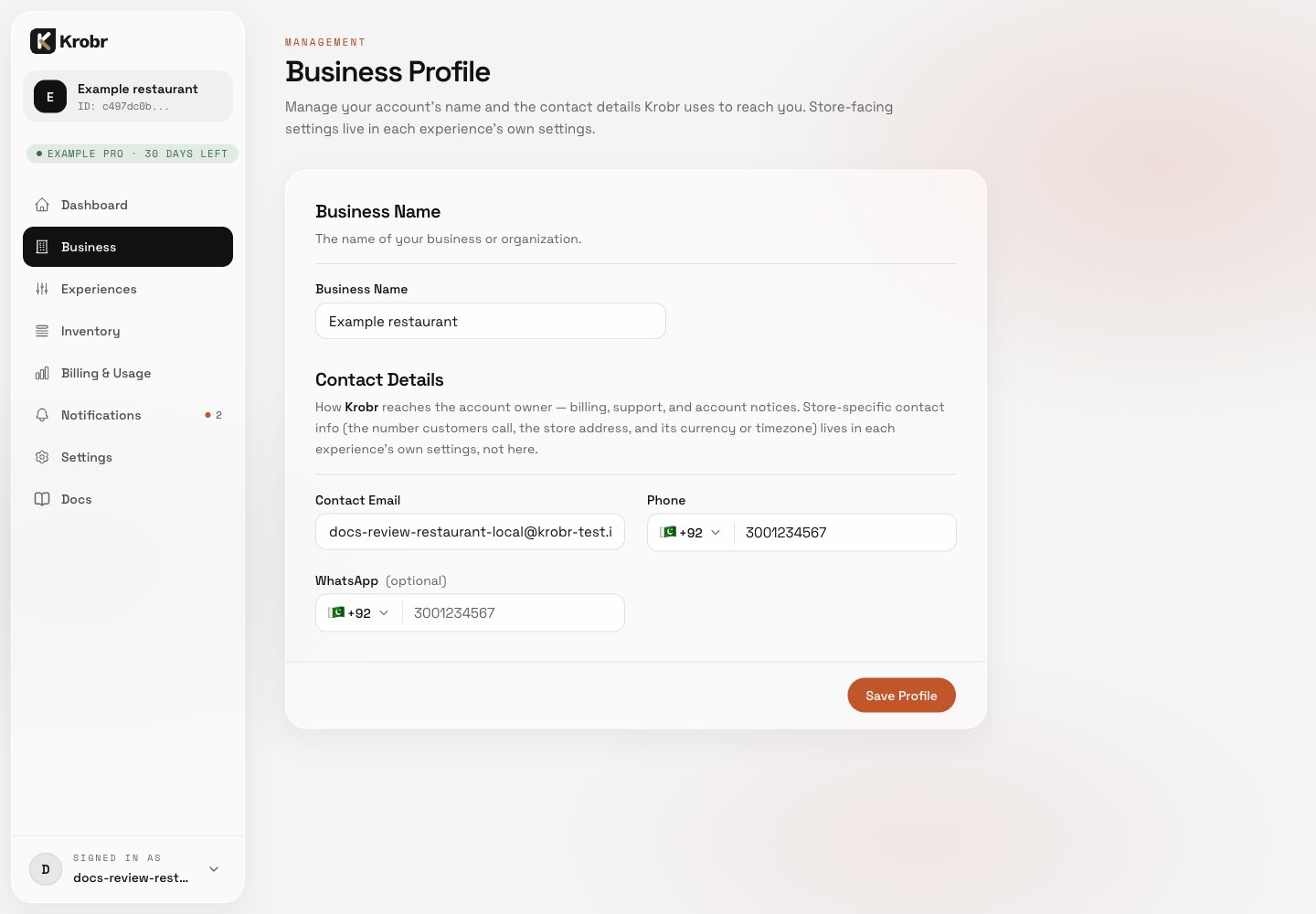
Set your business name and owner contact details: find the controls in this example screen and follow the numbered instructions above.