What this guide helps you do
Keep your personal profile and account preferences accurate, change your password while signed in, and distinguish account details from a store's public information.
Use Notification devices in the alerts settings to review registered apps and store coverage. Send test alert checks sending to the current app; Repair notifications renews its setup. The launch banner’s Enable button opens the native permission prompt after your tap. See notification devices and troubleshooting.
Before you start
Sign in to your own account. Have your current password ready if changing it. Use Business for owner contact details and Partner Settings or Visual Editor for public store information.
Where to find it
Choose Settings from the workspace sidebar. On a phone open More, then Settings. Support partners also have Settings in their own workspace.
Step by step
-
Open Settings and review the account/profile sections before editing.
-
Under Your details, edit Full name, choose the correct country code for Phone, and enter your number and Address. Choose City from its search list; select Area if the form offers it for that city. Email is read-only. Choose Save details.
-
Find Language / Zaban below the notifications section. Choose English or Roman Urdu; it saves automatically and refreshes translated screens, without a separate Save button. While Saving… / Save ho raha hai… appears, wait. If saving fails, the previous option returns; check the connection and try the choice again. See Change Krobr app language for the Partner route and English-only exceptions.
-
Under Change password, enter Current password, New password and Confirm password, then choose Change password.
-
Use Show password only while checking typing and wait for the password form's success message. Support partners use their profile's Name, Phone, WhatsApp and City fields, then Save profile.
-
If the current password is unknown, use Forgot password from Log in; a settings field cannot recover the old password.
-
Open Business to update how Krobr reaches the owner. To change what customers see, open the correct store's editing or Partner screen instead.
-
Reload Settings after a successful save to confirm the new values persist.
Understand the choices
-
Personal profile, owner contact details, and public store contact details serve different purposes; changing one does not automatically rewrite all three.
-
Language is your personal app preference. It does not change store content, currency, timezone or permissions. The Docs article-language control is separate.
-
Read-only fields are informational. If a field has no editable control, do not assume it can be changed from another field with a similar name.
-
Each form reports its own validation and success state. Changing a preference does not automatically submit the password form.
Check the result
Saved profile/preferences survive a reload. A password change succeeds only after the password form confirms it; use the new password for future sign-ins.
If something goes wrong
-
An error appears under a field: correct that field, then resubmit the same section. Other entries stay available.
-
Nothing changed on the storefront: account settings are not public store design or contact settings.
-
Save did not complete on a weak connection: keep the form open, restore the connection, and retry after checking the current values.
Support partner access
In Support partner, Allow my support partner to create Experiences starts on. Turn it off and choose Save creation preference to stop creation for your account. Existing Experience section access is controlled separately in each store’s Settings.
Screenshots
These screenshots use demonstration data. Your names, amounts and available controls may differ. Current values on your own screen take priority.
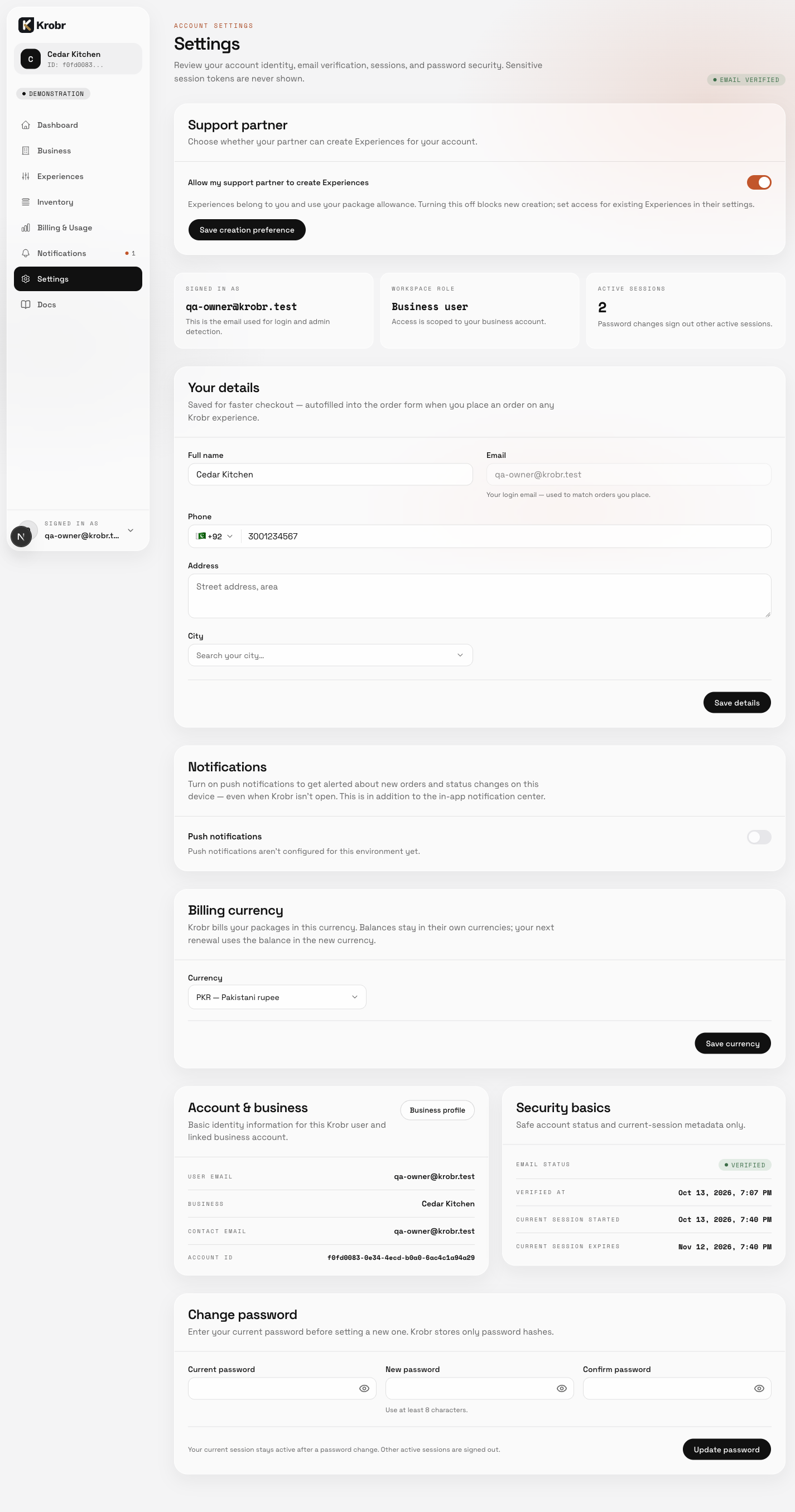
Open Settings from the workspace sidebar. This English example shows the Settings entry point and profile area; the Language card is not included in this capture.