What this guide helps you do
Choose how your assigned support partner helps with each Experience. You keep ownership, even when the partner creates the store for you.
Before you start
Sign in as the Experience owner. Your partner needs an active account and a verified email. These controls apply to your currently assigned partner, not ordinary teammates. A missing partner does not prevent you from saving preferences for a future assignment.
Where to find it
Open Krobr Partner → choose your store → Settings → Support partner access. On a phone, choose More → Settings. To control creation for your whole account, open workspace Settings; on a phone use More → Settings.
The new controls follow your saved Krobr UI language. This guide uses the English labels. In Roman Urdu, View is Dekhein and Manage is Manage karein. The guide’s language selector only changes the article.
Your partner opens Experiences from their workspace sidebar, or More → Experiences on a phone, and selects your customer account. They use the same details screen, Visual Editor and Krobr Partner pages with your saved restrictions. Theme View opens the editor read-only; Manage is required for edits and publishing. Their customer selection does not change ownership or their own settings and earnings.
Step by step
- Read the partner’s name under Support partner access and check that you opened the correct store.
- Leave Allow partner access on to give section access, or turn it off to block every section of this Experience.
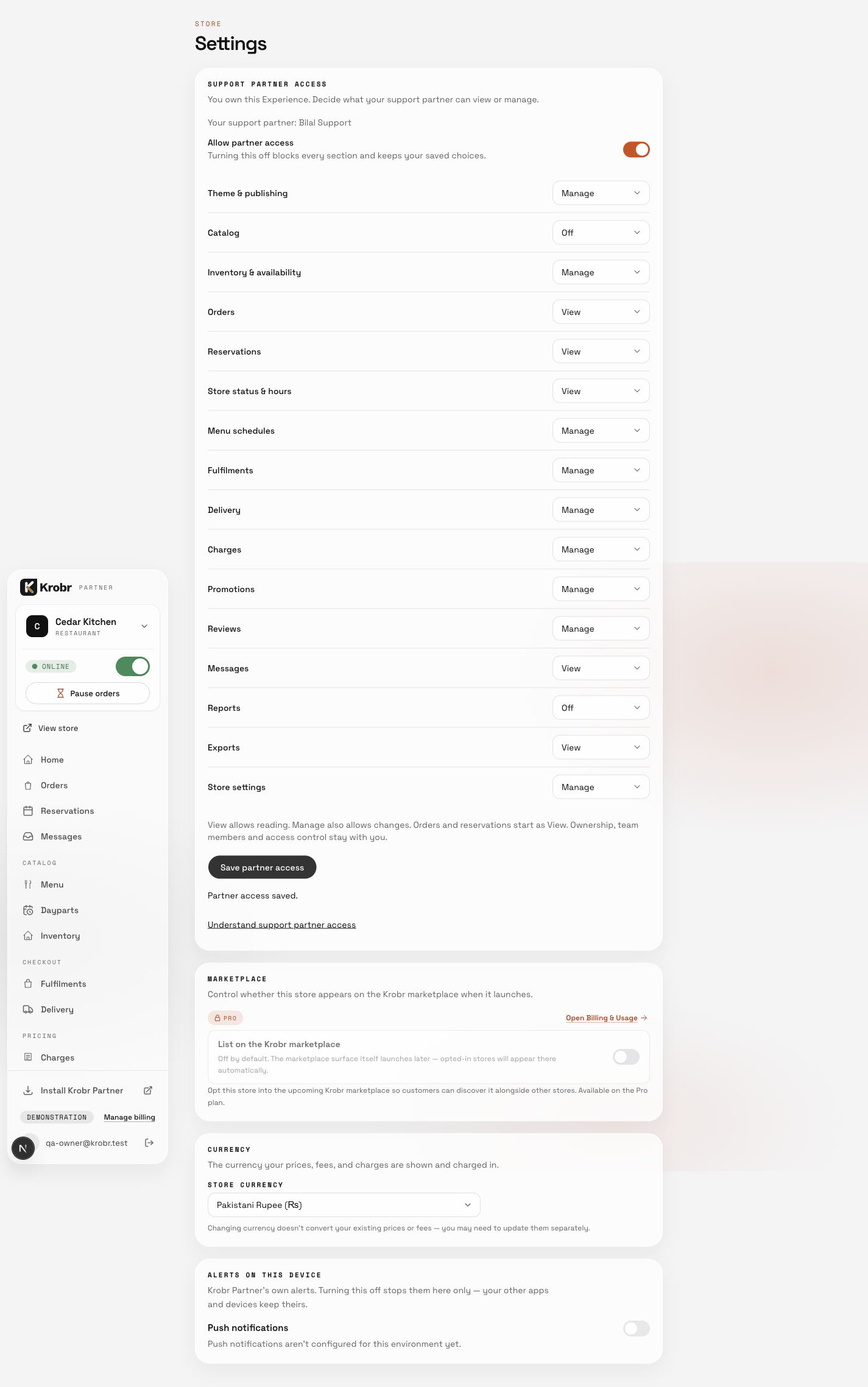
- For each available section, choose Off, View or Manage. For example, keep Orders at View, set Inventory & availability to Manage, and set Catalog to Off if you want help with stock only.
- Choose Save partner access. Wait for Partner access saved before leaving.
- Repeat for other Experiences. Each store has its own choices.
- To stop new stores being created, open account Settings → Support partner, turn off Allow my support partner to create Experiences, and choose Save creation preference. This does not remove access to stores you already have.
After saving a draft, open Go to Krobr Partner and choose Publish customer Experience when the customer’s account setup is complete.
In Inventory, Search inventory finds a product, SKU or option. Product availability, each SKU’s availability, and Options & add-ons can be changed separately when Inventory is Manage. Snoozed items become available when their saved time expires.
Understand the choices
- Off hides and blocks a section. View lets the partner read it and turns off changes. Manage permits the section’s available actions.
- Access starts on for existing and new stores, whether you or your partner creates them. Editable sections start at Manage. Orders and Reservations start at View, so the partner cannot create/edit orders or change status, payment or fulfillment until you choose Manage.
- Messages, Reports and Exports are read-only sections and offer Off or View. An export also needs access to the data being exported. Available sections depend on your store category.
- Inventory is separate from Catalog: use Inventory to change availability, stock tracking and SKU counts. Catalog permissions cover products, categories, prices and images.
- Turning the master switch off keeps your section choices. Turning it back on restores them.
- Only the owner or authorized platform admin controls partner access and staff invitations/permissions. Ownership transfer, cloning, archiving, restoration and deletion stay restricted.
- A replacement partner receives the same saved restrictions and account creation preference. Past financial records stay with the original partner; unfinished partner jobs move with the customer.
- Partner creation counts against your package’s Experience allowance. Publishing uses your verified email and account phone. In the wizard’s Publish step the partner can enter or change your account phone. Only a number the partner actually changes is saved to your account, and the change is recorded with the partner’s name; if you changed your phone in the meantime, your number stays. The wizard does not change your other account details or your WhatsApp number.
Orders and Reservations permissions also protect older saved records.
Check the result
Reopen Settings and confirm the saved choices. Ask the partner to refresh: Off sections disappear, View sections show read-only controls, and permitted sections remain available. The owner’s Settings screen also lists recent audited partner changes.
If something goes wrong
- No access controls: open your own store as its owner. An ordinary teammate or support partner cannot change these preferences.
- Save failed: check your connection, stay on the page and retry. Unsaved choices do not change server access.
- Partner cannot create a store: check the account creation preference, current assignment, active status, email verification and your package allowance.
- Partner cannot publish: verify your email. The partner can enter your account phone at Publish, or you can add it in Business. The partner can choose Save draft while setup is incomplete.
- Partner changed: check Notifications and account Settings for the new partner. Transfers take effect immediately; email may arrive later if delivery needs retrying.
Screenshots
This example uses demonstration data. Names and available sections may differ.