What this guide helps you do
Add Workspace, Partner, a store's Orders or Stock app, or the customer storefront to your device.
After enabling push in several Krobr apps on the same phone or computer, use the one-time device code in Notifications to link those apps. Other devices continue receiving their own alerts.
Use Notification devices in the alerts settings to review registered apps and store coverage. Send test alert checks sending to the current app; Repair notifications renews its setup. The launch banner’s Enable button opens the native permission prompt after your tap. See notification devices and troubleshooting.
Before you start
Use a supported browser and an internet connection. Sign in with the correct account for management apps. Store permissions still apply after installation.
Where to find it
Workspace's store page and Partner Home show an Apps card with available apps and Install links. Computer users can scan its QR codes with a phone.
Step by step
-
Open the required app's real address using Install in the Apps card or scan that app's QR code. Orders and Stock are separate apps for the selected store.
-
On Android, open in Chrome and use the site's Install control or browser menu → Install app/Add to Home screen. Confirm the prompt.
-
On iPhone, open in Safari, tap Share → Add to Home Screen, check the name and tap Add. If opened inside another app, first open the link in Safari.
-
On a supported computer browser, choose the address-bar install icon or browser's Install option and confirm.
-
Open the new app icon. Sign in if asked, then check that the intended store and screen are shown.
-
Repeat for another app or store only if needed. Existing installed apps may hide their Install card.
Understand the choices
-
Workspace manages the account and stores; Partner runs store operations. Orders focuses on the order queue; Stock focuses on availability and inventory.
-
Krobr's icon has an enlarged ivory/gold K on a dark background that fills the whole icon. Store apps keep the store's logo or initial. On an iPhone, remove and re-add an existing Home Screen app to pick up a changed icon.
-
A storefront install is for customers of that store. It does not grant management access. Its top bar takes the store's background colour in light and dark mode.
-
An installed app does not pinch- or double-tap-zoom, like a native app. Open the same address in a browser tab if you need to zoom.
-
Orders you have already loaded stay usable offline: status changes save on this device and sync when you reconnect. Other settings and information that has not been loaded need an internet connection. See the Orders guide for pending changes and sync conflicts.
-
An app update normally loads when the app is reopened or refreshed online. Do not clear browser data until you have saved changes and kept important order links.
Check the result
A separate app icon opens the correct Krobr surface without the normal browser controls. Check the store name for focused apps.
If something goes wrong
An installed app can have a different account from your workspace. If asked, compare both emails before choosing. On an unavailable page, Switch account returns to that same page; Go to my stores opens your available stores. Account and sign-in recovery.
-
No install option: use the supported browser at the actual app address, leave an embedded browser or check whether it is already installed.
-
No Orders/Stock link: your category or permissions may not support that app.
-
Offline queue: keep working on loaded orders and check Pending order changes. Reconnect to sync with the server and other devices; review any held changes before retrying. Installing the app does not download every past order.
Screenshots
These screenshots use demonstration data. Your names, amounts and available controls may differ. Current values on your own screen take priority.
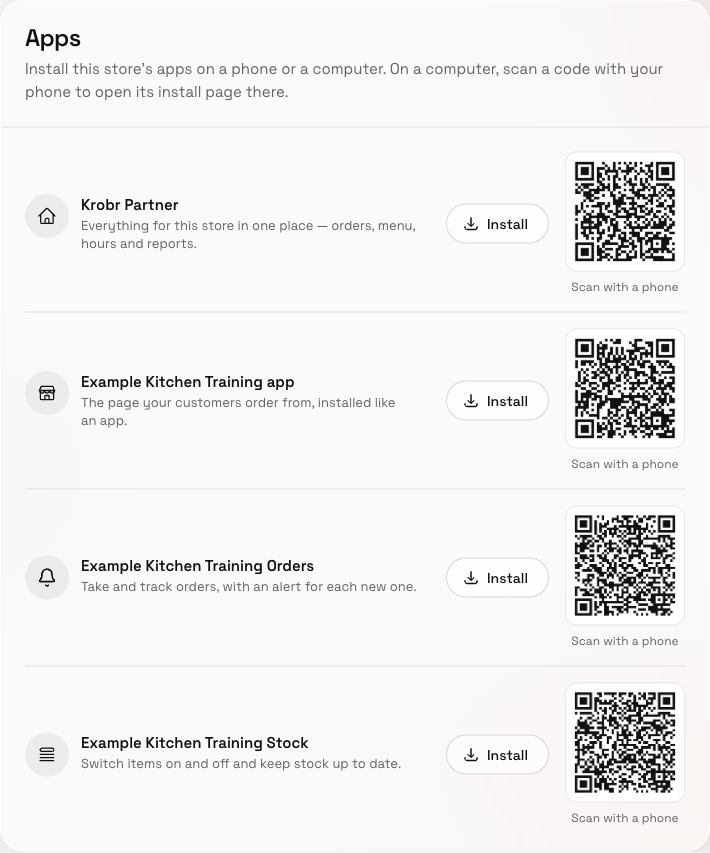
This store has separate Partner, storefront, Orders and Stock install links.