What this guide helps you do
Create your Krobr account using an email and password, confirm the email code, and sign in on the app you want to use.
Before you start
Use an email inbox you can open. Choose a password that meets the requirements shown on the form. If you already have an account, use Log in instead of starting another signup.
Where to find it
Choose Sign up or Log in on Krobr. Signup can also appear inside the Create experience wizard. The store's customer sign-in is a separate entry into the same account system.
Partner, Orders, Stock and Visual editor links open their own address in a new tab. Krobr checks the account already signed in there against your workspace account. If they differ, Which account would you like to use? shows both names and emails. Choose Continue as… for the account you intend to use; the app returns to the page you opened, including its filters. If the session has expired, sign in again.
Step by step
-
Open Sign up and type your Email and Password. Use the password visibility button to check typing, then hide it again if someone can see your screen.
-
Answer Signing up with a support partner? If a referral link supplied a partner, read the displayed partner information before continuing.
-
Submit the first step. Open your inbox and find the latest Krobr verification message.
-
Enter the six-digit code on the verification step. Keep the same signup page open while checking the inbox.
-
If the code is missing, check spam and the spelling of the address. Use Resend when the countdown allows it; enter the most recent code.
-
Confirm the code. Your workspace account is created after successful verification, then the app continues to the page you were opening.
-
On later visits, open Log in and enter the same email and password. If the page remembers a destination, successful sign-in returns there.
-
To sign out on a computer, use the account menu. On a phone, open More and choose Log out.
Understand the choices
-
Email identifies your account and receives verification and recovery messages. Signup does not ask for a business name; the store wizard collects it later.
-
The code is temporary. Resending replaces the previous code; an expired attempt may require starting signup again.
-
A support-partner referral choice affects who helps your account. It does not share your password with that partner.
-
An existing address can receive a neutral signup message. If you have registered before, use Log in or Forgot password.
Check the result
After verification, your workspace opens or you return to the intended screen. Seeing an error means you have not completed that step; the form keeps your entries so you can correct them.
If something goes wrong
-
Wrong or expired code: use the newest email and follow the expiry instructions. Do not repeatedly guess codes.
-
Invalid email/password: check spelling, extra spaces, and the correct app. Use recovery if you cannot remember the password.
-
Too many attempts: wait before retrying. Rapid retries do not help.
-
Unable to publish after signing in: publishing also requires the owner's primary contact phone; follow the specific field link.
When a page is unavailable
- Read the name and email on the message. This is the account currently signed in on that app.
- Choose Switch account to return to this same page with another account. On the account choice screen, continue with the listed account or choose Use another account and enter the correct email and password.
- Choose Go to my stores to open the stores available to you instead.
- If the correct account still cannot open the page, ask the store owner for the required permission. A missing or unavailable private link uses the same message; it does not reveal another store's details.
A failed or expired sign-in handoff offers Sign in or Switch account, plus Go to my stores. A temporary loading error also offers Try again.
Screenshots
These screenshots use demonstration data. Your names, amounts and available controls may differ. Current values on your own screen take priority.
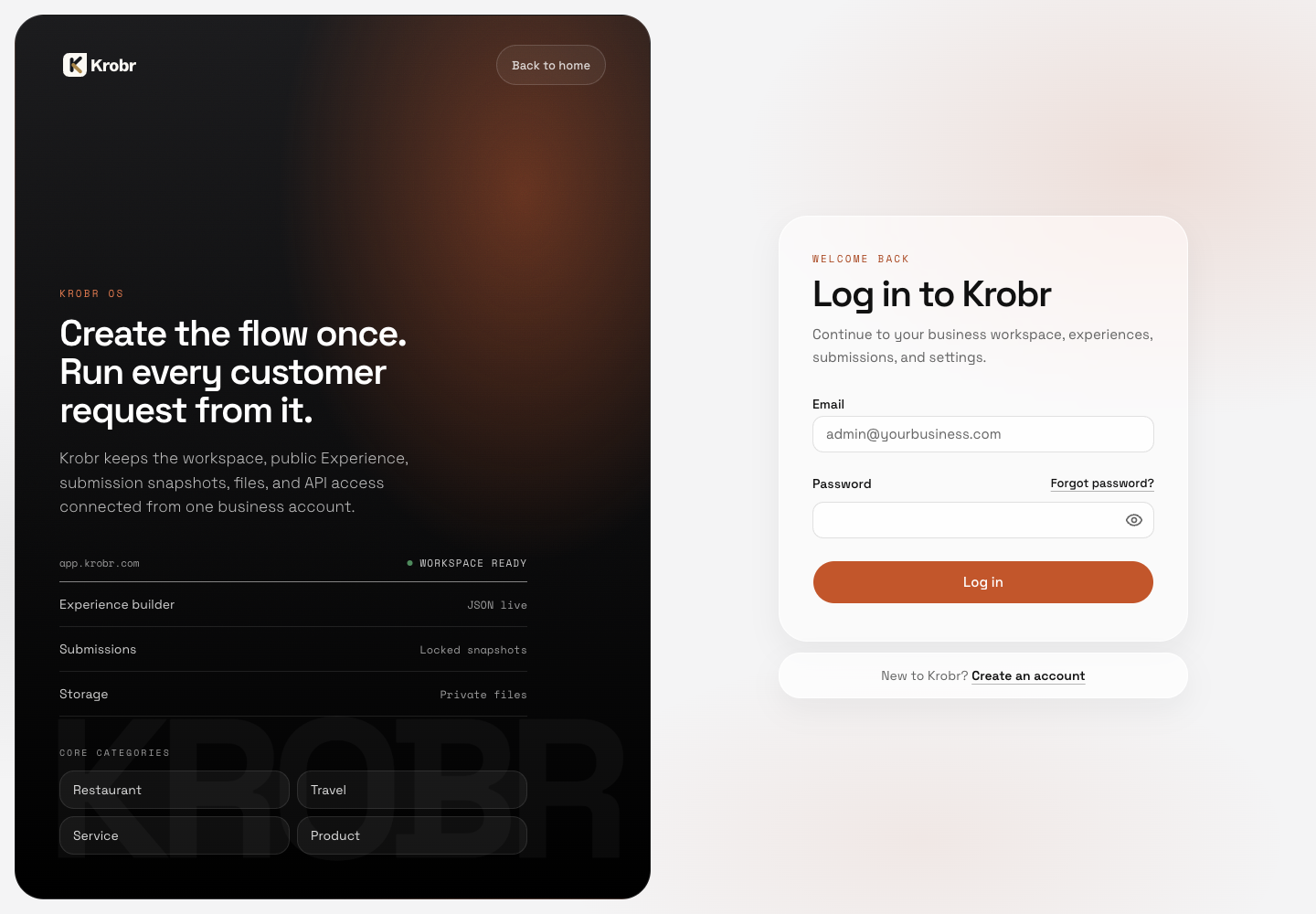
Create an account, verify your email, and sign in: find the controls in this example screen and follow the numbered instructions above.
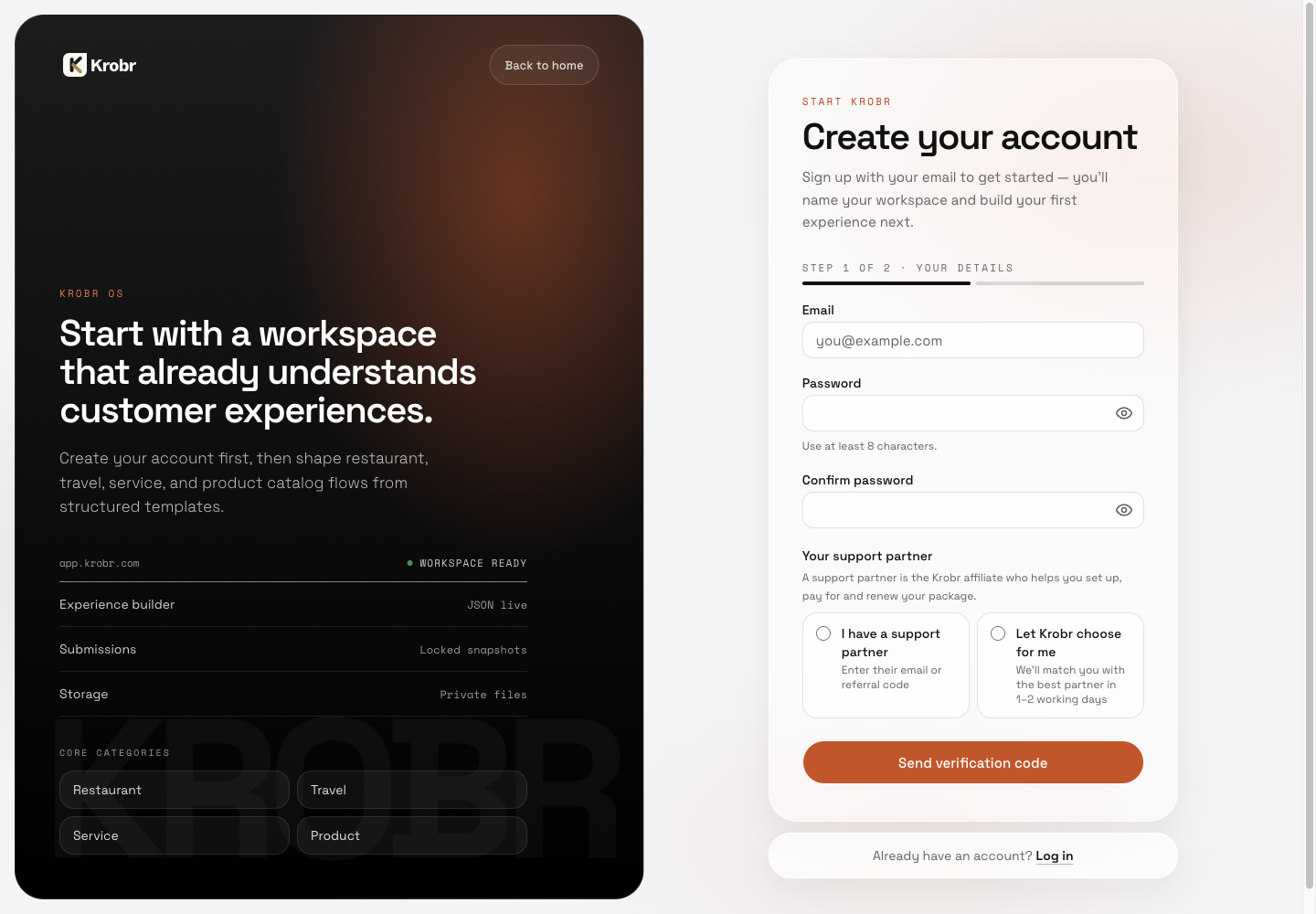
Create an account, verify your email, and sign in: find the controls in this example screen and follow the numbered instructions above.
Next steps
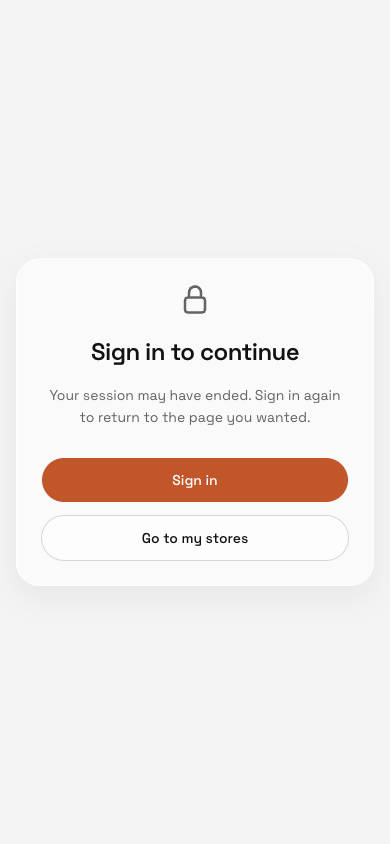
If sign-in has expired, sign in again to return to the requested destination.
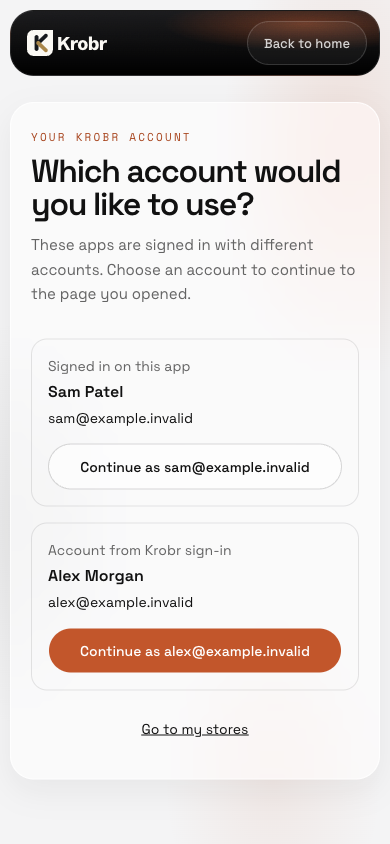
Compare both accounts before continuing.
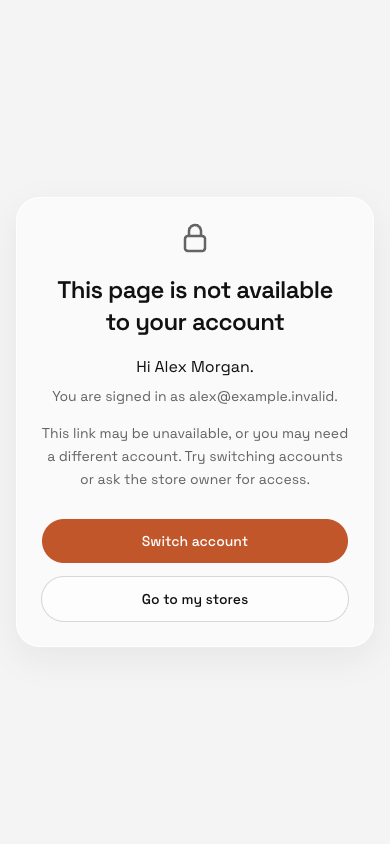
Check the signed-in email, then switch accounts or go to your stores.