What this guide helps you do
Choose English, Roman Urdu, Roman Pashto, Roman Punjabi or Türkçe for your personal Krobr screens. This changes Krobr screens and complete Docs guides. It does not rewrite the content of a store your customers visit.
Before you start
You can use the footer on the public Krobr website without signing in. To save a personal account preference, sign in to your own account. Finish any other form you are editing before changing language. For the Partner route, open a store you are allowed to manage in the full Krobr Partner app.
The control is called Language in English, Zaban in Roman Urdu, Zhaba in Roman Pashto, Zubaan in Roman Punjabi and Dil in Turkish. The five options are always named English, Roman Urdu, Roman Pashto, Roman Punjabi and Türkçe, regardless of the surrounding screen language. Docs uses the same language as the rest of Krobr.
Where to find it
There are three places to change language:
-
Public Krobr website: scroll to the footer and open Language / Zaban / Zhaba / Zubaan / Dil. You do not need an account. The browser remembers your choice for other Krobr pages, including sign-in and signup.
-
Workspace: open Settings from the computer sidebar, or More → Settings on a phone. Find Language / Zaban below the notifications section. For business accounts, it is above Billing currency.
-
Full Krobr Partner: open an authorized store and scroll the computer sidebar past the navigation to the Language / Zaban / Zhaba / Zubaan / Dil dropdown. It shares a compact row with its label, above the account/sign-out row. On a phone, open More and scroll its continuous body to the same dropdown.
The focused Orders and Stock apps do not have this account block or a separate switch. Use workspace Settings or the full Partner app instead. Sign-in, signup and the workspace user menu do not add a separate control.
Step by step
- Open one of the three places above. In Partner, use your account block, not the store's Settings page.
- Check the current choice shown in the Language / Zaban / Zhaba / Zubaan / Dil dropdown, then open it.
- Choose English, Roman Urdu, Roman Pashto, Roman Punjabi or Türkçe from the list. With a keyboard, highlight an option using the arrow keys, then press Enter to confirm; Escape closes the list without changing your choice. Once confirmed, the selection changes immediately and saving starts automatically. There is no separate Save button for language.
- While Saving… / Save ho raha hai… / Save kigi… / Save ho reha ae… / Kaydediliyor… appears, wait. The dropdown is temporarily disabled, so do not try to submit the choice again.
- When saving succeeds, Krobr refreshes the translated screens using your choice. Check the selected option and the nearby language heading in your selected app language.
- To switch back, choose another listed language and wait for the same automatic save and refresh.
- If saving fails, the previous option is restored and an error appears. Check your connection and sign-in, then select the desired option again. Do not assume a failed selection was saved.
- Open Docs or continue reading your current guide. Its articles, search and controls use the same selected language. There is no separate article-language button. Changing language while reading keeps the same article.
Understand the choices
- Roman Pashto and Roman Punjabi use everyday Pakistani wording in plain Latin letters and keep familiar English app terms. Turkish uses its normal alphabet. All five choices use the existing left-to-right layout.
- When signed in, this is your personal account preference. Another owner or teammate can use a different app language without changing the store.
- English is the default until you choose otherwise. Krobr does not choose the app language from your country or device language.
- The browser remembers a signed-out choice across Krobr marketing, sign-in, signup and Help pages and Krobr subdomains. Signing in to an existing account uses its saved language if one exists. Signing out does not itself reset the browser choice.
- Customer storefronts and their order-status screens stay English. The live storefront preview in Visual Editor and the bodies of Terms and Privacy also stay English.
- Store names, product descriptions, customer details, notes, entered text and stored documents are not rewritten. CSV/PDF data exports and saved historical text keep their original content. Thermal receipts and receipt PDFs use a separate per-device Receipt language choice in the Orders Printer sheet; the app-language choice does not change it. See Set up a receipt printer.
- Currency, timezone, country, dates, numbers, money formatting and permissions do not change. Weekday and month names stay English.
Check the result
After saving and refreshing, the selected option remains selected and translated Krobr controls use that language. Reopen Settings to check the preference. The store your customers visit and its entered content are unchanged.
If something goes wrong
- Couldn't change the language. Try again. / Zaban nahi badli ja saki. Dobara koshish karein.: restore the connection, check that you are signed in, and select the option again after the pending state ends.
- Cannot find the control: use the public website footer, workspace Settings or the full Partner account block. Focused Orders/Stock apps and the store Settings form do not add another switch.
- A guide uses a different language: check the selected app language, wait for the refresh, and reopen the guide. Docs has no separate language preference.
- Some text remains English or unchanged: check the exceptions above. Changing language does not translate merchant/customer content, old stored text or exports.
Screenshots
This retained English example uses demonstration data. It shows where to open Settings, not the language control itself.
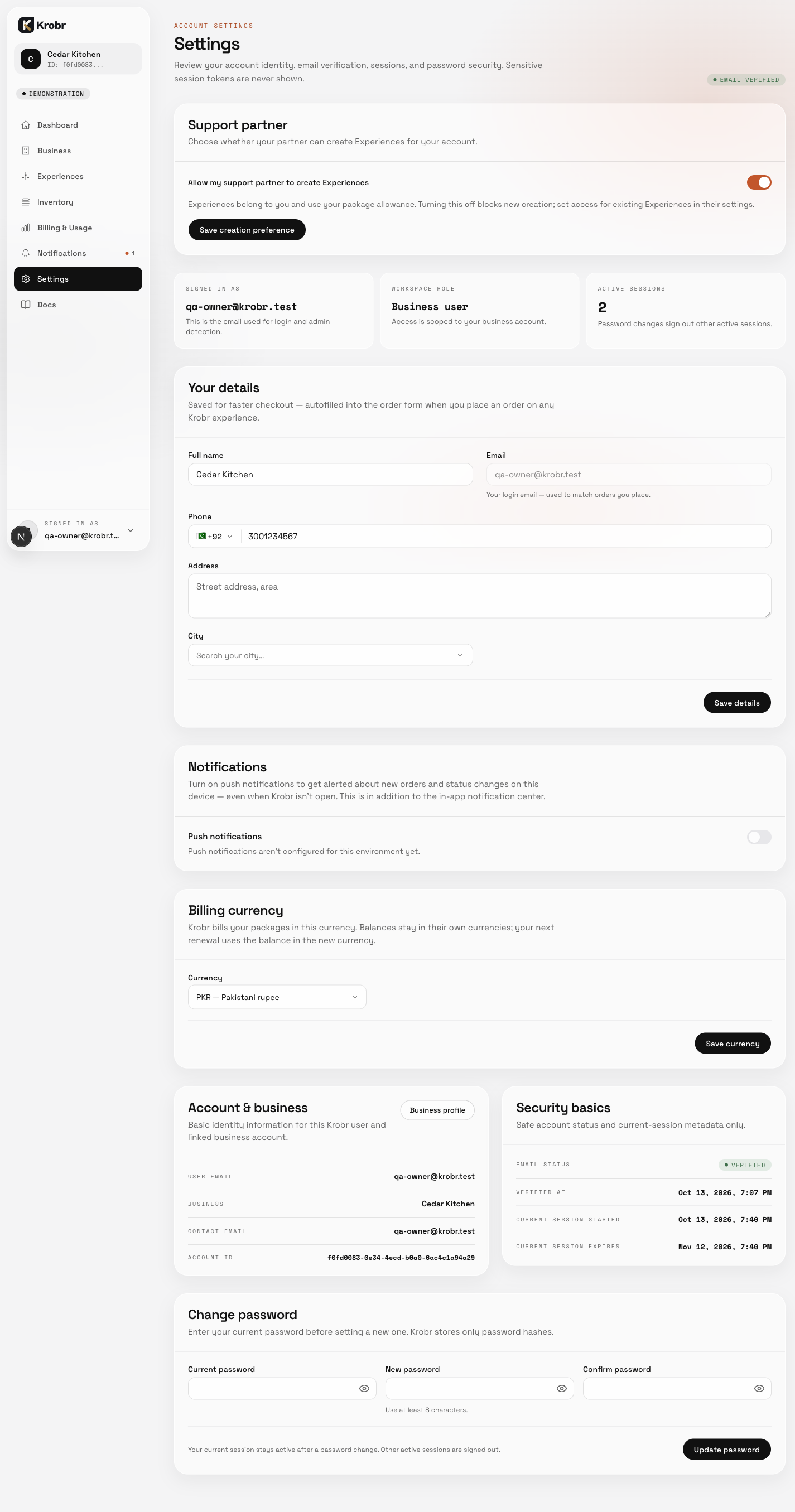
Open Settings from the workspace sidebar. This English example shows the Settings entry point and profile area; the Language card is not included in this capture.