What this guide helps you do
Print a menu made from your store's live catalog: choose a design and paper format, pick the sections and items to include, rename items for the print, and download a PDF or PNG.
Before you start
Use your own store, or team or support-partner access that can view the store's design and exports. Every package can use the builder. The menu prints the store's QR code, so the store needs its public web address before you can download. Finish catalog changes in Krobr Partner first, because the menu reads the catalog as it is when you open the builder.
Where to find it
Experiences → your store → Builder → Menu. Builder is the link under the quick QR code on the store overview, and it is also in the store's three-dot row menu on the Experiences list. On a phone start from Experiences and the store overview, then scroll the builder: the preview comes right after the design gallery, followed by the design's own settings (printed wording, Colors, Logo and Background where offered), then Format, Menu content and the download buttons.
Step by step
-
Open Builder for the correct store and choose Menu.
-
Under Choose a design, pick one of the 30 designs. Use the style chips (All, Minimal, Bold, Elegant, Restaurant, Photo, Classic, Local) to narrow the gallery.
-
Under Format, choose A4 (portrait, flows onto as many pages as needed), A3 poster (one large page), Tri-fold (A4 landscape, folds in three) or DL table card (99 × 210 mm, one page). Only the formats the selected design supports are offered.
-
In Menu content, set the Title, Subtitle and Footer. Leave Title empty to print your store name and Footer empty to print your web address.
-
Under Show, switch Descriptions, Variants and sizes, Prices, Unavailable and snoozed items, and the "Scan to order" QR code on or off.
-
Under Sections, untick any section to leave it out. Open a section's Items to untick single items, or type a different name for an item on this menu only.
-
Adjust Colors, the Logo slot and a Background image where the design offers them, then check every page in the preview.
-
Choose Download PDF for printing. Use Download PNG for screens or social posts; a multi-page menu downloads one image per page.
Understand the choices
-
Hiding or renaming an item changes only this print. Your catalog, prices and storefront stay the same. To change an item for good, edit it in Krobr Partner and reopen the builder.
-
Unavailable and snoozed items are left out by default. Opening-hour and daypart schedules are ignored: a printed menu lists every included item all day.
-
Items with variants print every variant with its own price; a long list of sizes is never cut short, the item just takes more room. An item whose price is a formula prints without a price, and the builder tells you how many such items there are. Old (struck-through) prices and item photos are not printed.
-
Items you hid from the menu in Krobr Partner never print and are not listed under Sections, even with Unavailable and snoozed items switched on.
-
A section heading stays with at least two of its items (or its only item), so a heading never sits alone at the bottom of a column.
-
The design gallery shows each design with your starting menu. Your edits show in the preview, not in the gallery tiles.
-
A4 adds pages until everything fits. A3 poster and DL table card are one page, and Tri-fold has two sides of three panels. On these formats the text shrinks to a minimum size; if the menu still does not fit, the builder shows how many items don't fit and the download prints only what fits. An item too tall for a whole column is left out and counted the same way.
-
The PDF holds each page as a 300 DPI high-quality image, which keeps the file small; its text cannot be selected. PNG downloads are lossless.
-
Edits are never saved. Reloading the page or leaving the builder resets them, so download before you leave.
Check the result
The downloaded menu shows the sections, item names and prices you expect, every page matches the preview, and the "Scan to order" QR code opens your storefront when scanned.
If something goes wrong
-
"Items don't fit": untick sections or items, turn off Descriptions, or choose a larger format such as A4.
-
"Nothing to print yet": tick at least one section, or include unavailable items.
-
The format you used is gone after changing design: that design has no such version, so the builder switched to A4.
-
An item is missing: check its section and item ticks, and the Unavailable and snoozed items switch; deleted items, inactive sections and items hidden from the menu in Krobr Partner never appear.
-
Download buttons are disabled: read the QR code unavailable message; the store needs a valid public web address first.
Screenshots
These screenshots use demonstration data. Your names, amounts and available controls may differ. Current values on your own screen take priority.
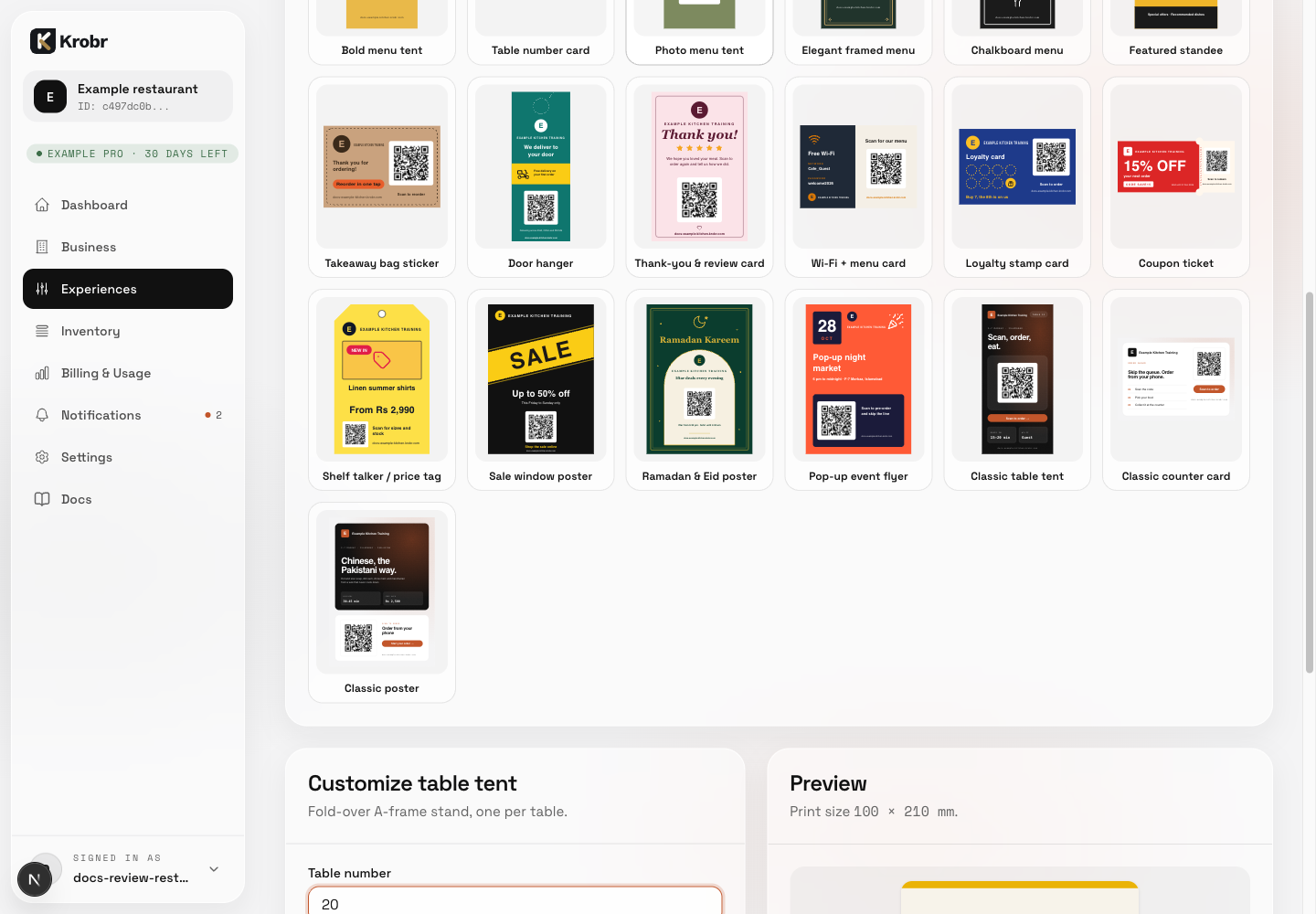
Example builder screen with a design gallery, customization panel and preview; the menu builder uses the same layout and adds Format and Menu content.