What this guide helps you do
Connect a thermal receipt printer to the device you take orders on, print an order's receipt straight onto the roll, and save the same receipt as a PDF to send to a customer.
Before you start
You need access to Orders in Krobr Partner. Reading an order is enough to print or save its receipt.
Direct printing needs Chrome or Edge on an Android phone or tablet, or on a computer. It works with USB printers and with Bluetooth printers that use Bluetooth Low Energy (BLE). Older "classic" Bluetooth printers, Wi-Fi/network printers and iPhone or iPad browsers can't print directly; use PDF there.
Switch the printer on, load the paper roll and, for USB, plug it into the device first.
Where to find it
Partner → Orders → Printer, beside Scan and + New order. The focused Orders app has the same button. PDF and Print sit at the top of every open order, next to Call and WhatsApp. On a phone these are icon buttons.
Step by step
-
Open Orders and choose Printer.
-
Choose Connect USB printer or Connect Bluetooth printer. Only the options your browser supports are shown.
-
In the browser's device list, pick your printer and choose Connect (or Pair). The sheet shows Connected: and the printer's name, and the Printer button shows a dot.
-
Under Paper width, choose 58 mm for small portable printers or 80 mm for standard counter printers.
-
Under Receipt language, choose English, Roman Urdu, Roman Pashto, Roman Punjabi or Türkçe for receipts and PDFs. It starts as English, whatever language the app is shown in.
-
Choose Test print. A short "Printer test" slip prints and the paper is cut where the printer has a cutter.
-
Open an order and choose Print. The receipt goes straight to the printer; a message confirms it was sent.
-
To send a receipt to a customer, open the order and choose PDF. In the box that opens, choose Save as PDF as the destination and save it, then share the file with the customer.
Understand the choices
-
Each device remembers its own printer, paper width and receipt language. Set up every phone, tablet or computer you print from.
-
Print appears only while this device's printer is connected. PDF is always available.
-
A remembered USB printer reconnects by itself when it's plugged in again or the page reloads. A Bluetooth printer does too where the browser allows; otherwise choose Printer → Reconnect.
-
The receipt shows the store name and the public address and phone from your storefront's Visit section, the order number, status and time, the items with their options, the totals, the customer's details, a QR code the customer can scan to track the order, and a thank-you line.
-
Store and customer content (item names, notes, addresses) prints exactly as entered. Text the printer can't show, such as Urdu script, is printed as an image.
-
Forget printer removes the pairing from this device only.
Check the result
The test slip and receipts print fully on the roll, the QR code scans to the order's tracking page, and a saved PDF shows one receipt the width of the paper.
If something goes wrong
-
No Connect buttons: the browser can't reach printers directly. Use Chrome or Edge on Android or a computer, or use PDF.
-
The printer isn't listed: check it's on and charged. For Bluetooth, make sure it supports BLE and isn't connected to another phone. For USB, try another cable or port.
-
"Couldn't connect to the printer": switch the printer off and on, then try again. On Windows, a USB printer installed as a Windows printer may be held by Windows; ask whoever manages the computer to switch its USB driver, or use Bluetooth or an Android device.
-
"Couldn't print": check paper, power and connection, then choose Reconnect.
-
Text is cut off or tiny: set Paper width to match the roll in the printer.
Screenshots
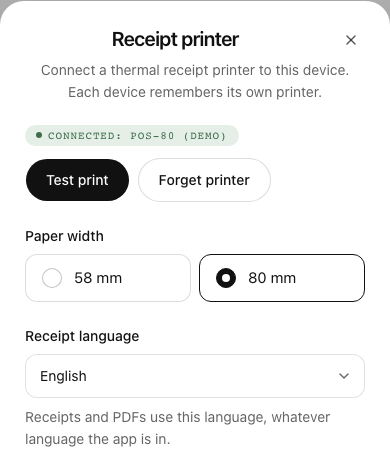
This example uses a demonstration printer. Your printer's name and the options your browser offers may differ.