Yeh guide kis kaam mein madad karti hai
Brew ke current supported sections aur controls use karein. Yeh reference visible controls dikhati hai taake sahi guide mile aur unavailable section na dhoondna pare.
Shuru karne se pehle
Store owner ya Edit design access chahiye. Isi store category mein theme chunein. Theme change se pehle original content sambhalein; catalog/operations Partner mein.
Yeh kahan milega
Workspace → Experiences → store → Visual Editor. Phone par editor menu/rail se named panel kholein. Preview size controls se computer/phone inspect karein.
Qadam ba qadam
-
Theme mein category ke offered themes se Brew select karein.
-
Brand & colors check; theme starting colors fill kar sakta hai. Intended changes dein.
-
Neeche editor panels kholein. Customer capabilities storefront features hain, separate editor panel nahin. Ek field badal kar preview inspect karein.
-
Items/stock/prices/collections/options ke liye Partner management link aur catalog guide follow karein.
-
Phone par panel menu kholein, computer side rail na dhoondein. Long panel ke andar scroll karein.
-
Preview ke baad Save. Save manual hai; publish aur checkout eligibility alag.
-
Public store dobara khol kar phone/computer layout, links, checkout aur order page check.
Choices ko samjhein
-
Theme — Layout chunein; theme badalne par visible sections badal sakte hain.
-
Brand & colors — Naam, branding aur supported header info dein. Phone aur computer previews dono check karein.
-
Experience name (Brand & colors): Zaroori field. Displayed wording likhein.
-
Primary color (Brand & colors): Optional field. Brand color chunein aur text contrast check.
-
Accent color (Brand & colors): Optional field. Brand color chunein aur text contrast check.
-
Modes offered / Default mode (Brand & colors): Light, Dark ya dono chunein; dono hon to default chunein. Dono par visitor toggle milta hai.
-
Logo image (Brand & colors): Optional field. Supported file upload ya Paste URL karein, fixed 1:1 crop mein logo position karke Use crop aur phir Save changes chunein. Allowed formats: PNG, JPEG, WEBP.
-
Cover rotation interval (seconds) (Brand & colors): Optional field. Valid number dein. Kam az kam 3. Zyada se zyada 10.
-
Tagline / cuisine type (Brand & colors): Optional field. Displayed wording likhein.
-
Prep / delivery time (Brand & colors): Optional field. Displayed wording likhein.
-
Delivery badge (Brand & colors): Optional field. Displayed wording likhein.
-
Menu items — Catalog Partner mein manage hota hai. Visual editor read-only view aur management link deta hai.
-
Pricing — Current stores ke visual editor mein currency/pricing read-only preview hai. Product prices, charges, promotions aur delivery fees ke liye Manage in Krobr Partner use karein.
-
Buttons — Visible button words badlein; unavailable action ka wada na karein.
-
Submit button text (Buttons): Zaroori field. Displayed wording likhein.
-
Primary button label (Buttons): Optional field. Displayed wording likhein.
-
Button label (CTA section) (Buttons): Optional field. Displayed wording likhein.
-
Fulfillment — Actual checkout methods Partner mein configure; presentation field unavailable method activate nahin karta.
-
Submission page — Customer order-page presentation customize; status/payment rules operational settings hain.
-
Re-order (Submission page): Optional field. Dikhane/enable ke liye on; chhupane/disable ke liye off.
-
Request change / cancel (Submission page): Optional field. Dikhane/enable ke liye on; chhupane/disable ke liye off.
-
Contact business (Submission page): Optional field. Dikhane/enable ke liye on; chhupane/disable ke liye off.
-
Leave a review (Submission page): Optional field. Dikhane/enable ke liye on; chhupane/disable ke liye off.
-
Opening hours — Hours dikhana presentation hai. Actual opening times, all-Closed aur timezone Partner mein control hain.
-
Map / Location — Correct location/address dein aur displayed map/directions test karein.
-
Embed code (paste from Google Maps) (Map / Location): Optional field. Readable text aur line breaks check karein.
-
Heading (optional) (Map / Location): Optional field. Displayed wording likhein. Zyada se zyada 60.
-
Address (optional) (Map / Location): Optional field. Displayed wording likhein. Zyada se zyada 200.
-
Navigation — Har visible navigation link enabled section tak jata ho check karein.
-
Show order button (Navigation): Optional field. Dikhane/enable ke liye on; chhupane/disable ke liye off.
-
Link: menu (Navigation): Optional field. Dikhane/enable ke liye on; chhupane/disable ke liye off.
-
Link: visit (Navigation): Optional field. Dikhane/enable ke liye on; chhupane/disable ke liye off.
-
Hero — Main headline, supporting text aur allowed cover controls se store introduce karein.
-
Show this section (Hero): Optional field. Dikhane/enable ke liye on; chhupane/disable ke liye off.
-
Eyebrow (Hero): Optional field. Displayed wording likhein.
-
Headline (Hero): Optional field. Displayed wording likhein.
-
Subheadline (Hero): Optional field. Readable text aur line breaks check karein.
-
Show rating (Hero): Optional field. Dikhane/enable ke liye on; chhupane/disable ke liye off.
-
Primary button label (Hero): Optional field. Displayed wording likhein.
-
Show secondary button (Hero): Optional field. Dikhane/enable ke liye on; chhupane/disable ke liye off.
-
Secondary button label (Hero): Optional field. Displayed wording likhein.
-
Story — Business clear text mein batayein aur long paragraphs phone par check karein.
-
Show this section (Story): Optional field. Dikhane/enable ke liye on; chhupane/disable ke liye off.
-
Eyebrow (Story): Optional field. Displayed wording likhein.
-
Title (Story): Optional field. Displayed wording likhein.
-
Body (Story): Optional field. Readable text aur line breaks check karein.
-
Story image (Story): Optional field. Supported photo/crop confirm phir Save. Allowed formats: PNG, JPEG, WEBP.
-
Menu — Actual items/categories browse. Products/menu data Partner se edit, display ko yahan rewrite nahin.
-
Show item images (Menu): Optional field. Dikhane/enable ke liye on; chhupane/disable ke liye off.
-
Show prices (Menu): Optional field. Dikhane/enable ke liye on; chhupane/disable ke liye off.
-
Featured — Supported featured presentation aur referenced available items check karein.
-
Show this section (Featured): Optional field. Dikhane/enable ke liye on; chhupane/disable ke liye off.
-
Gallery — Relevant photos, order aur cropped phone previews check karein.
-
Show this section (Gallery): Optional field. Dikhane/enable ke liye on; chhupane/disable ke liye off.
-
Visit — Visit se pehle needed store info dein; operational hours/contact se match karein.
-
Show this section (Visit): Optional field. Dikhane/enable ke liye on; chhupane/disable ke liye off.
-
Address (Visit): Optional field. Displayed wording likhein.
-
Phone (Visit): Optional field. Displayed wording likhein.
-
Google Maps link (Visit): Optional field. Displayed wording likhein.
-
Show map button (Visit): Optional field. Dikhane/enable ke liye on; chhupane/disable ke liye off.
-
Show address (Visit): Optional field. Dikhane/enable ke liye on; chhupane/disable ke liye off.
-
Show phone (Visit): Optional field. Dikhane/enable ke liye on; chhupane/disable ke liye off.
-
Contact — Correct contact ya contact form text dein. Message order nahin banata.
-
Show this section (Contact): Optional field. Dikhane/enable ke liye on; chhupane/disable ke liye off.
-
Title (Contact): Optional field. Displayed wording likhein.
-
Body (Contact): Optional field. Readable text aur line breaks check karein.
-
Collect: name (Contact): Optional field. Dikhane/enable ke liye on; chhupane/disable ke liye off.
-
Collect: email (Contact): Optional field. Dikhane/enable ke liye on; chhupane/disable ke liye off.
-
Collect: phone (Contact): Optional field. Dikhane/enable ke liye on; chhupane/disable ke liye off.
-
Reviews — Supported review presentation chunein. Asal reviews Partner mein manage hote hain.
-
Show this section (Reviews): Optional field. Dikhane/enable ke liye on; chhupane/disable ke liye off.
-
Show average + count (Reviews): Optional field. Dikhane/enable ke liye on; chhupane/disable ke liye off.
-
Show individual reviews (Reviews): Optional field. Dikhane/enable ke liye on; chhupane/disable ke liye off.
-
Call to action — Customer ka clear next action aur supported destination test karein.
-
Show this section (Call to action): Optional field. Dikhane/enable ke liye on; chhupane/disable ke liye off.
-
Title (Call to action): Optional field. Displayed wording likhein.
-
Body (Call to action): Optional field. Readable text aur line breaks check karein.
-
Button label (Call to action): Optional field. Displayed wording likhein.
-
Footer — Footer wording aur contact/social links review; broken/misleading links na dein.
-
Customer accounts — Yeh customer capability prerequisites aur store settings allow hon to available hai. Related task guide follow karein.
-
Customer ratings — Yeh customer capability prerequisites aur store settings allow hon to available hai. Related task guide follow karein.
-
Order confirmation & status — Yeh customer capability prerequisites aur store settings allow hon to available hai. Related task guide follow karein.
-
Menu search — Yeh customer capability prerequisites aur store settings allow hon to available hai. Related task guide follow karein.
-
Visitor light/dark toggle — Yeh customer capability prerequisites aur store settings allow hon to available hai. Related task guide follow karein.
Nateeja check karein
Saved Brew storefront supported sections aur intended presentation dikhaye. Is reference mein absent section theme offer nahin karta; zaroorat par doosra supported design chunein.
Agar masla ho
-
Panel missing: selected theme/category aur list check; har theme har section support nahin karta.
-
Catalog read-only: Partner kholein. Section hide se items delete ya store close nahin hota.
-
Theme change par preview farq: colors, supported sections aur phone layout Save se pehle review.
-
Changes gayab: editor chhorne se pehle Save success; permissions/validation check.
Screen ki misaalein
In screenshots mein example data hai. Aap ke naam, amounts aur controls alag ho sakte hain. Apni screen ki current values ko follow karein.
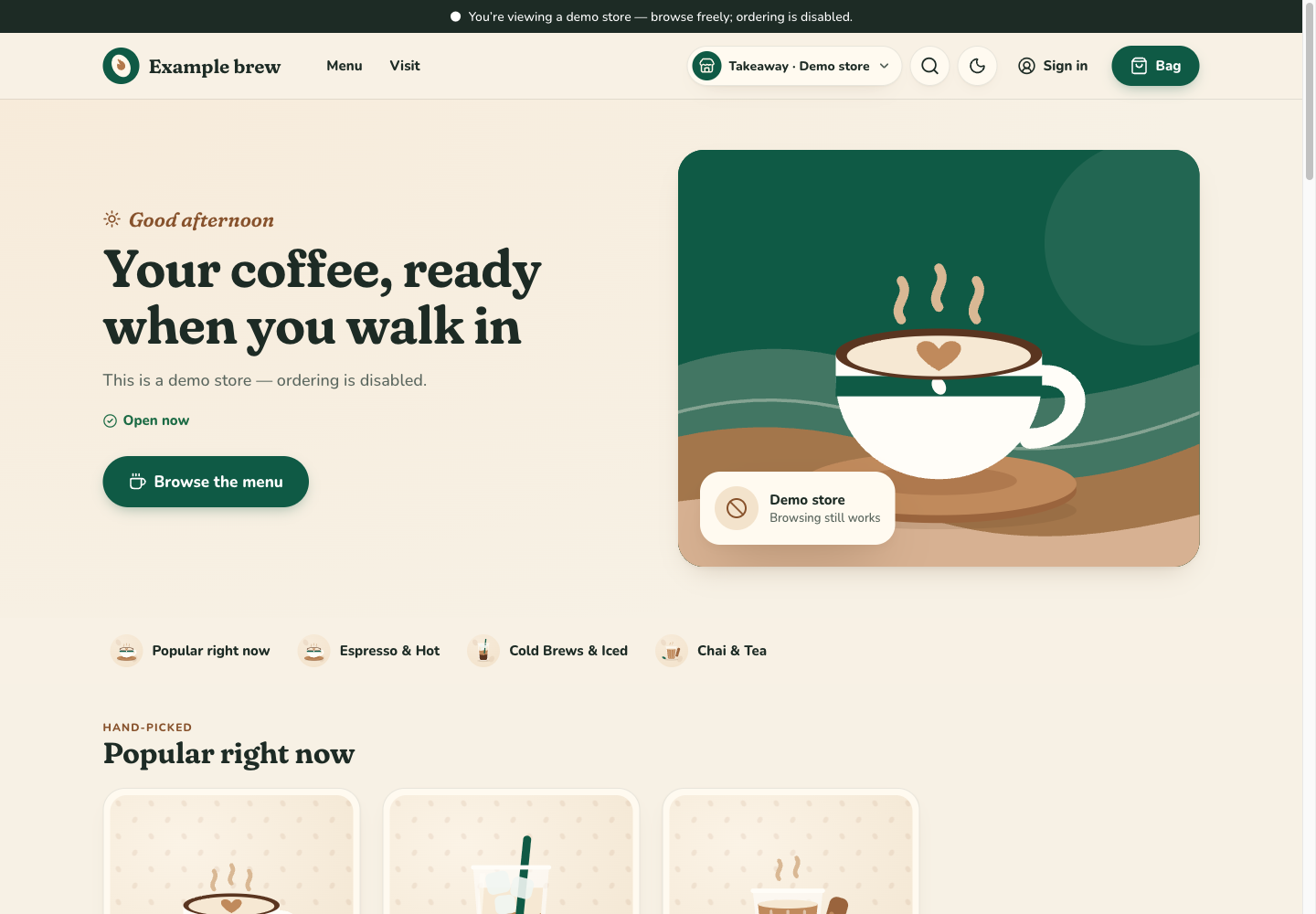
Brew theme: controls aur farq: example storefront mein is theme ki layout aur navigation dekhein.