What this guide helps you do
Find items in a restaurant/shop storefront, choose the right variants and extras, review the cart, and submit a checkout with the required details.
Before you start
Open the store's genuine public address or store QR. The store must accept the selected method and items. Have your contact/address details ready; sign-in is useful for saved details but follow the storefront's actual requirements.
Where to find it
Use the storefront's categories, search, and product/item cards. Each theme has its own navigation; Docs includes a guide for the theme. The cart/checkout control can be a basket bar, icon, side column, or dedicated screen.
Step by step
-
Choose a category or search a product/menu name. Use the offered filters to narrow a long catalog.
-
Open the item details and read the description, photos, current price, and availability.
-
For a restaurant item, choose its mandatory variant/extras. For a shop, choose each required size/color or other dimension to select the correct SKU.
-
Set quantity and check each unit's choices where the theme provides per-unit options. Add only the intended items to the cart.
-
Open the cart and review quantities, selected options, charges, promotion, delivery, and total. Remove unwanted items before proceeding.
-
If using a discount code, enter it and wait for its accepted/invalid result. The best qualifying single promotion applies, not a stack of every offer.
-
Open Checkout and choose one offered fulfillment method. Complete the fields for that method; a pickup does not use the same details as delivery.
-
If signed in with saved details, use the offered autofill action, then check/edit the filled name, phone, address, city, and area.
-
Review required-field messages and the final amount, then submit once. Keep the checkout open if a connection or validation error appears.
-
After success, keep the private order/status link and order number. Pay-by-bank instructions and proof upload occur after placement on that page.
Understand the choices
-
While a restaurant is closed, eligible items can still be added to the basket; immediate checkout is blocked, and valid future reservations remain available.
-
Retail hours and closure dates disable Pickup while enabled Cash on delivery and Pay by bank stay available. Manual pause/offline stops every retail checkout method. A selected method and entered details stay in the checkout when it becomes unavailable; choose an enabled method or wait for it to reopen.
-
From/starting price is not necessarily your chosen variant's final price. The cart reflects the choices and quantity.
-
Unavailable items/options cannot be ordered even if their card is visible. Hours, stock, pauses, and delivery coverage can also restrict placement.
-
A saved draft or cart is not a placed order. A success/status link confirms final placement.
-
Leaving checkout to adjust the cart preserves its page-session draft where supported. Browser storage/session changes can still lose unfinished work.
-
Demo storefronts let you explore but do not place real orders; use the real store to buy.
Check the result
You receive one private status link and order number for the selected items/method. The stored amount is authoritative; check the order recap rather than submitting again.
If something goes wrong
-
Required choice highlighted: open that item and choose the marked option/SKU.
-
Address not covered: choose the correct city/area or another offered fulfillment method; a guessed area does not bypass the coverage gate.
-
Submission failed on a weak connection: keep your fields, restore connectivity, and check whether a success link exists before trying again.
-
Store closed: read its current notice; future reservation availability can differ from current delivery/pickup availability.
Screenshots
These screenshots use demonstration data. Your names, amounts and available controls may differ. Current values on your own screen take priority.
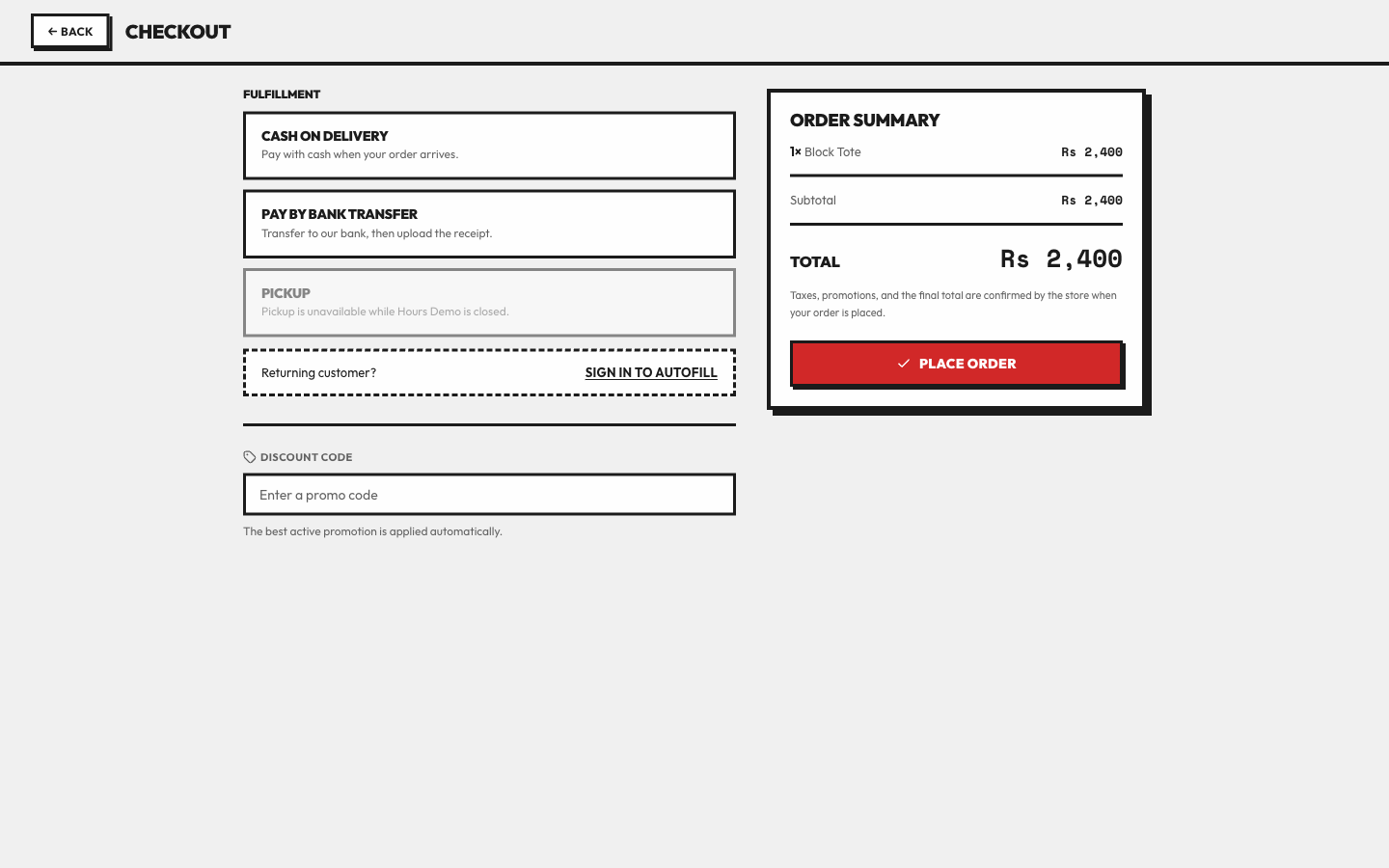
Check the offered method, autofilled contact details and final total before placing the order.