What this guide helps you do
Keep product shortcuts on your device, revisit products, and understand how a shop theme's navigation and light/dark controls work without confusing them with an order.
Before you start
Open a Product Catalog storefront whose theme supports these controls. Saved/recent lists are per device/browser, not a guaranteed account-synchronized wishlist.
Where to find it
Look for the theme's Save/bookmark control, Saved tab/screen, Recently viewed section, and visitor light/dark toggle. Their positions differ across themes.
Step by step
-
Open a product and use its Save/bookmark control when offered. This saves a shortcut, not an order or stock reservation.
-
Open Saved from the theme's navigation to find the shortcut. Tap the product to inspect current availability and price.
-
Remove a product from Saved through the same save control when it is no longer useful.
-
Browse another product, then inspect Recently viewed where the theme displays it. The list uses the same device/browser's browsing history for that storefront.
-
If a saved/recent product changed or disappeared from the live catalog, expect its entry to update or be omitted; always check the current product before ordering.
-
Use the light/dark toggle if offered, or let System mode follow the device. This changes the local viewing appearance, not the merchant's saved design.
-
When ready to buy, choose a variant and add it to the actual cart. Saved/recent navigation alone does not place an order.
Understand the choices
-
Saved and recent data can differ between phone, computer, browser, private browsing, and a cleared browser profile.
-
The lists are bounded and reconcile with the live catalog. A removed product is not kept orderable by an old shortcut.
-
These customer conveniences are inert in editor preview/order views where the app disables them.
-
Theme capabilities vary; an absent toggle/tab may simply mean this design uses different navigation.
Check the result
Products are easy to revisit on the same device, and every order still goes through the current product/cart/checkout flow.
If something goes wrong
-
Saved list empty on a second device: per-device data is expected; save the item there if needed.
-
Old saved price changed: the live product's current price is authoritative for a new order.
-
Dark mode differs in another browser: the viewing preference is local/device-dependent.
Screenshots
These screenshots use demonstration data. Your names, amounts and available controls may differ. Current values on your own screen take priority.
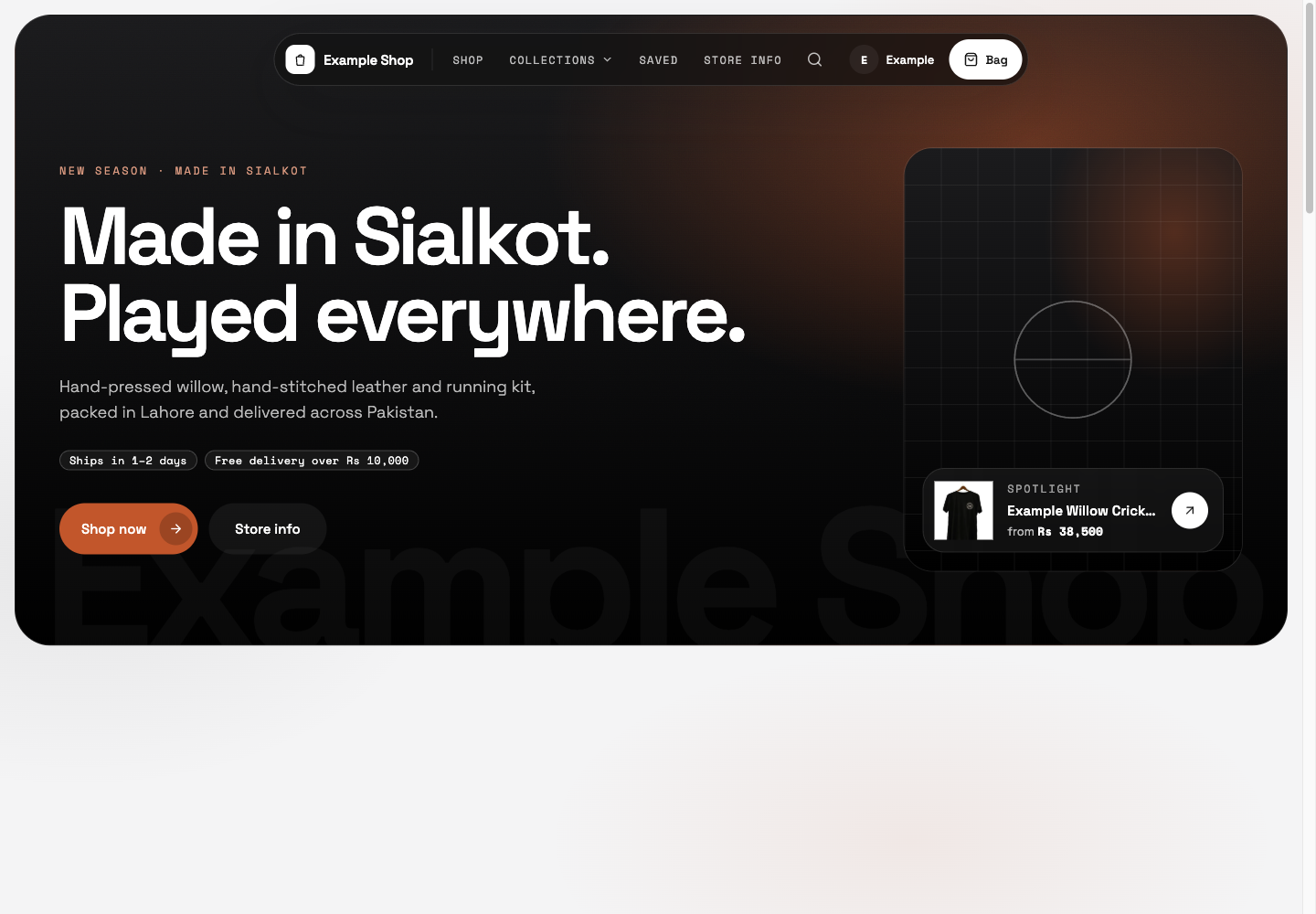
Saved and the theme controls are available from this English storefront header; Saved/Recently viewed results are not shown.