What this guide helps you do
Enter an order taken at a counter or over the phone, review required choices and payment state, and distinguish an offline held order from a successfully placed server order.
Before you start
Use Manage submissions permission. Confirm the store and have the customer's required details. When offline, keep the same device/browser because held orders are stored on that device.
Where to find it
Partner → Orders → + New order, or the same action in the focused Orders app. On a phone the floating action sits near Scan; use Review order to reach the cart.
Step by step
-
Choose + New order. Search the catalog, add the intended items, and set each quantity.
-
Select required restaurant options or the correct shop SKU before placing the order. Review extras and unit choices in the cart.
-
Choose the fulfillment method and complete its displayed customer fields. Do not use delivery details for a pickup order unless that method asks for them.
-
Set the offered paid/unpaid choice honestly. Mark paid only when staff has actually collected the money.
-
Review the order's preview subtotal and details, then choose Create/Place order as labeled. The server checks availability and computes the authoritative total.
-
The new order appears in the local queue immediately when saved offline. Keep working through its offered status/payment actions. Its reference and prices are provisional until sync; the server creates the order before replaying those changes. Monitor Not synced and the pending-change count.
-
When connectivity returns, monitor the unsynced list. If a held order needs attention, open it, correct unavailable items or details, and re-place the same held record.
-
If abandoning a held order, use its explicit discard/delete control and confirmation. Do not create a second fresh order just because the first is waiting to sync.
-
Search the resulting order number in the queue and verify payment/method/items. Closing a dirty builder asks before discarding unsaved work.
Understand the choices
-
The displayed running subtotal is a preview. New availability, stock, fees, or promotions can change the server result.
-
A held offline order remains local until accepted by the server. Do not promise a server order reference before confirmation.
-
Reopening a held order preserves its method, entered details, and paid/unpaid choice; check them before re-placing.
-
Required options and SKU choices are validated like customer checkout. A manual order does not bypass inventory or permissions.
Check the result
One confirmed order appears in the queue, with correct method and payment state. The corresponding held record no longer remains as a second pending order after successful re-placement.
If something goes wrong
-
Required option error: select the marked choice before placing again.
-
Offline warning: keep the device data and reconnect; do not clear browser storage while orders are unsynced.
-
Held order cannot sync: inspect the new catalog/availability and correct it through the held-order editor.
-
Uncertain whether placement succeeded: search the queue/reference before submitting another fresh order.
Support partner access
Support partners need Manage for the order’s section. Orders and Reservations both start at View; creating or editing a reservation requires Reservations Manage separately.
Screenshots
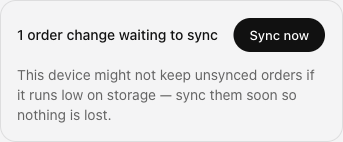
These screenshots use demonstration data. Your names, amounts and available controls may differ. Current values on your own screen take priority.
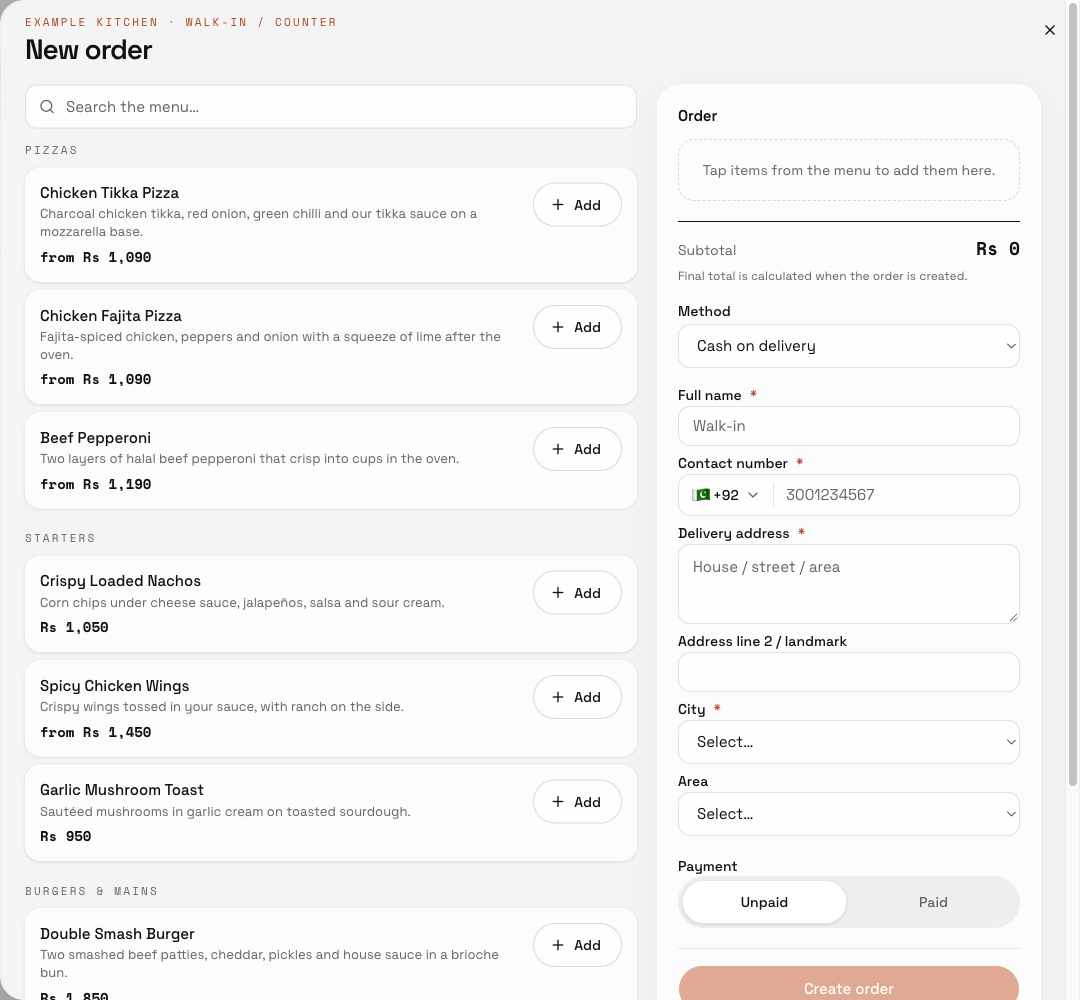
Create counter orders and resolve offline unsynced orders: find the controls in this example screen and follow the numbered instructions above.