What this guide helps you do
Choose a bookable restaurant date/time as a customer, understand that a request needs approval, and find or close out reservations as staff.
Before you start
The restaurant must enable Reservation. Customers need the requested booking/contact details. Staff need View submissions to inspect and Manage submissions to approve or close a reservation.
Where to find it
Customers choose Reservation in restaurant checkout. Staff use Partner → Reservations or Orders. On a phone use More → Reservations if it is not a primary tab.
Step by step
-
As customer, choose Reservation and complete Name, Date, Time, Party size, table/contact details as requested.
-
Choose a date first, then a time from that date's available list. Times follow the restaurant's timezone and schedule, not the phone's timezone.
-
If no times remain, choose another date. A holiday closure or a fully closed day may have no bookable slot.
-
For overnight hours, choose the calendar date on which the time occurs. A Saturday 00:30 booking is Saturday, even when Friday service opened the night before.
-
Add menu items if required. An item-free booking is allowed only if the restaurant enabled Allow this without adding any items.
-
Submit once and keep the private status link. The initial state is Reservation requested/waiting for approval, not a confirmed reservation.
-
As staff, open Reservations. The default view shows upcoming bookings; change Reservation from/date filters to find past bookings.
-
Open the request, review time, party size, table, items, and notes, then approve or decline using the offered action.
-
After the visit, mark Completed or No-show where offered. Reservations do not auto-complete simply because the scheduled time passed.
-
Customers check the same private status page for the approval result or any correction request.
Understand the choices
-
The available time list is date-specific and excludes past slots. A changed date can clear an invalid old time.
-
Opening-hours display visibility does not disable booking-time enforcement. Closures affect the closed calendar date.
-
Party size is the number of people; order-item quantity is a separate menu count.
-
The Reservations method filter is locked on this screen. Clearing filters restores its upcoming-reservation baseline rather than showing all order types.
Check the result
The customer has a private request link and sees the staff's approval/decline. Staff can find the booking under the selected date range and close it out deliberately.
If something goes wrong
-
No time list: choose a date, then read Closed on this date or No more times and choose another day.
-
A booking near midnight looks under the wrong day: use the actual calendar date in store time.
-
Cannot find an old reservation: change or clear Reservation from and inspect past status filters.
-
Empty reservation rejected: the restaurant did not enable the item-free allowance.
Support partner access
Support partners start with Reservations at View. Reservation actions require the owner to choose Manage for Reservations independently of Orders.
Screenshots
These screenshots use demonstration data. Your names, amounts and available controls may differ. Current values on your own screen take priority.
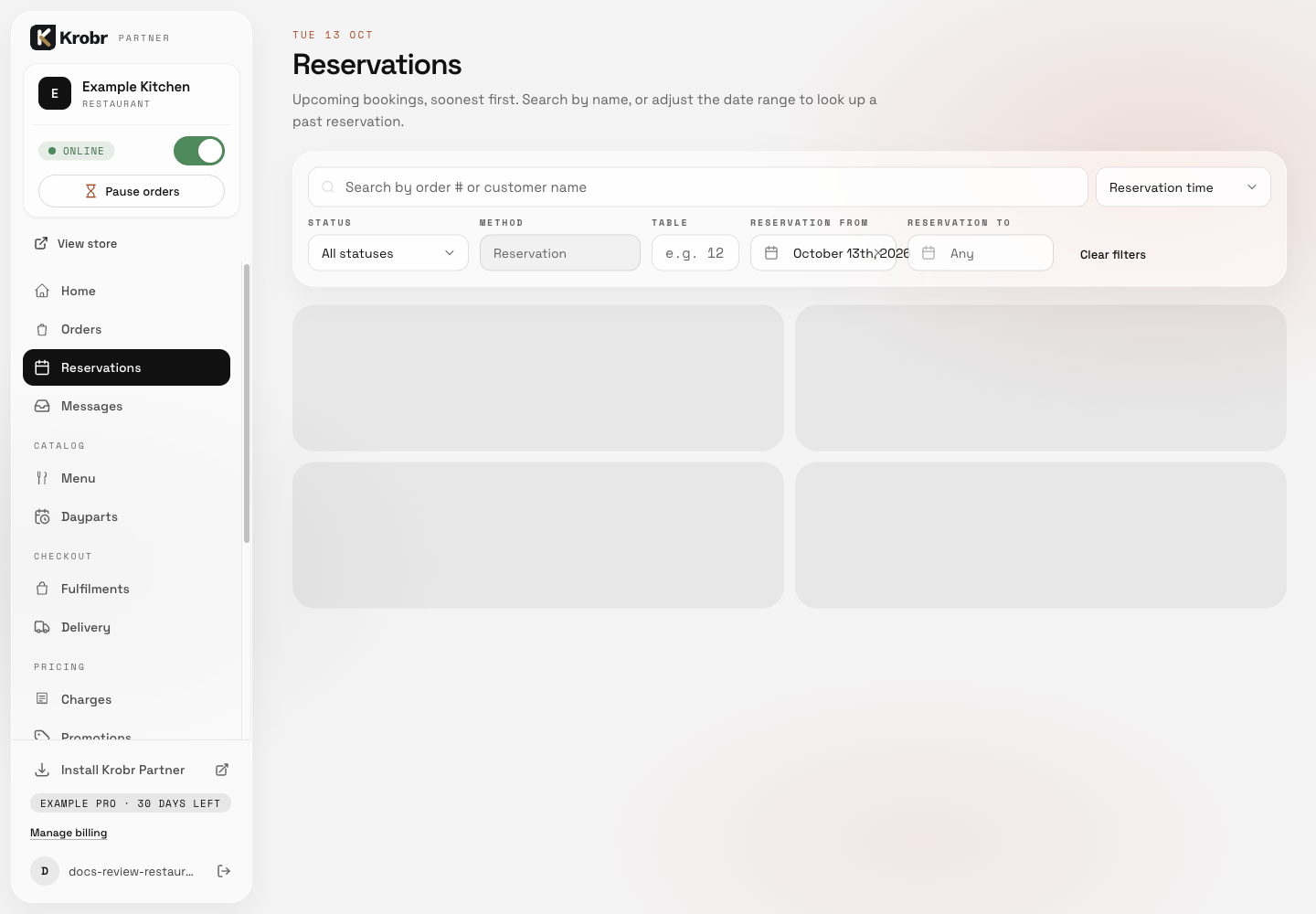
Reservation filters and loading placeholders; a completed reservation or approval result is not shown. Retained English example from 13 October 2026. The Partner account area now also includes Language, which is not shown in this dated sidebar; follow the numbered steps for the current screen.