What this guide helps you do
Find products and stores on the Krobr marketplace, keep one cart across several stores, and continue to each store's own checkout to place the order there.
Before you start
You don't need an account to browse, search, fill a cart or place an order. Sign in when you want your cart and saved items to follow you to another device, and to see all your orders in one place. The marketplace lists only stores that chose to be listed and that deliver somewhere.
Where to find it
Open marketplace.krobr.com in your browser, or install it as the Krobr Marketplace app. On a phone the bottom bar has Explore, Saved, Cart, Orders and More. Tap More for your account (or Sign in and Create account), the language and Sign out. On a computer the top bar has Saved, Cart, Orders and Account, and the filters sit on the left.
Step by step
-
Open Explore. On your first visit, answer "Where should we deliver?" by picking a country, a city and, if you like, an area, then tap Show stores. The location chip at the top shows your choice; tap it to change it later.
-
Choose Products (the default) or Stores. Type in the search bar to find a dish, a product or a store by name. Search also finds the keywords stores add to their items.
-
Open Filters (on a phone) or use the left rail (on a computer) to narrow the results: Store type (Restaurants or Shops), Location, Ordering method (for example Cash on delivery or Takeaway), Open now, Price and Rating. Use the sort control (Sort by on a computer) to choose Recommended, Newest, Price: low to high, Price: high to low or Top rated.
-
Tap a product card or a store card to open that store's own website. A product opens on that item.
-
To add a product to your cart without leaving the marketplace, tap its Add button. A simple item is added at once. An item with choices (a size, toppings or a colour) opens a picker: make every required choice, set the quantity, then tap Add to cart. Add to cart stays disabled until the required choices are made.
-
Open Cart. You see one card per store, with that store's delivery area, whether it is open, your items and their subtotal. Change a quantity with the stepper or remove an item.
-
On a store's card, pick how you want to receive the order under How would you like to order? (or choose it later at checkout), then tap Continue to followed by the store's name. You arrive on that store's checkout with your items already in it.
-
Check your items, fill in or confirm your details, and place the order on the store's checkout. The store confirms the final total there.
-
Return to the marketplace. That store's card leaves your cart once its order is placed, and the order appears under Orders.
Understand the choices
-
Each store prices and accepts its own order. The cart shows only the item subtotal; delivery, charges and discounts are calculated at the store's checkout.
-
Location filters follow each store's delivery coverage. Picking a city shows stores that deliver to the whole country, the whole city or any area of that city. Picking an area shows only stores that deliver to that area (or to its whole city or country).
-
Price range works only when exactly one country is selected, because stores in different countries use different currencies. Nothing is converted; otherwise the price filter is disabled with a hint.
-
Closed, paused or busy stores are still shown, after the open ones, with a label such as "Closed · opens 5:00 PM". You can keep their items in your cart, but Continue stays disabled until the store opens. Some shops still accept delivery orders outside their hours; their Continue stays enabled.
-
Sold-out and hidden items are not shown. Items whose price is worked out at checkout are not listed.
-
Without signing in, your cart, saved items and orders live only in this browser. When you sign in, your cart and saved items are kept in your account and merge with what was already on this device.
-
When you are signed in, Continue signs you in on the store too and fills in your saved details.
Check the result
After you place an order, the store's order status page opens as usual. Back on the marketplace, that store's card is gone from your cart and the order is listed under Orders with a link to its status page.
If something goes wrong
-
Continue is disabled: the store is closed, paused or busy. Wait until the time on the card, or keep the items for later.
-
An item disappeared or its price changed: the cart checks every store each time it opens and shows a note when an item is no longer available, its options changed, the quantity was capped or the price changed.
-
A store is missing for your location: check the location chip and your filters. Use Clear all to reset the filters.
-
The cart is different on another device: sign in on both devices with the same account.
-
You left the store's checkout without ordering: your items stay in the marketplace cart; tap Continue again.
-
An order you placed as a guest is not under Orders: guest orders are listed only in the browser you used. Use the link in the store's confirmation, or sign in before your next order.
Screenshots
These screenshots use demonstration data. Your names, amounts and available controls may differ. Current values on your own screen take priority.
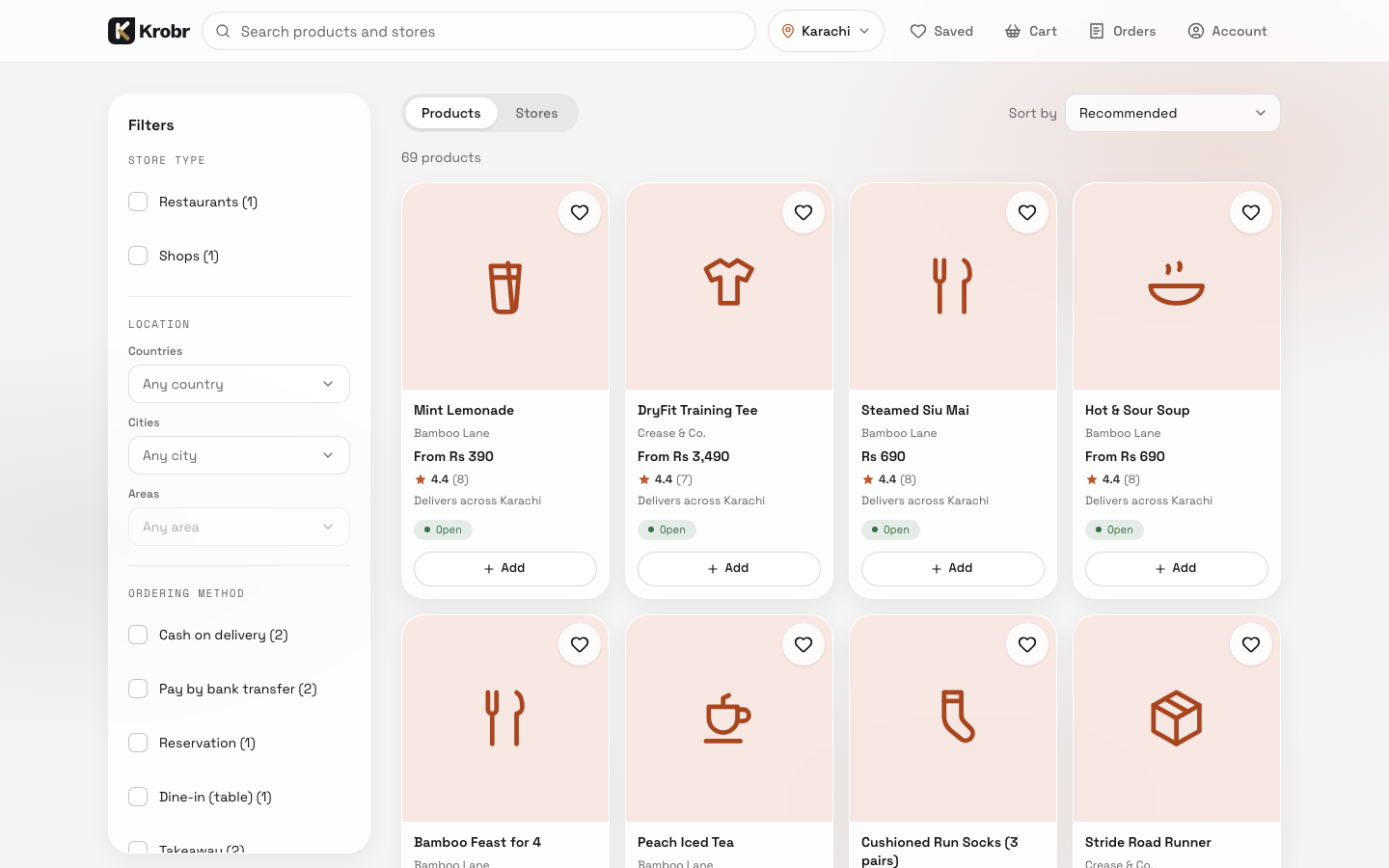
Marketplace Explore on desktop: search, filters, products and stores.
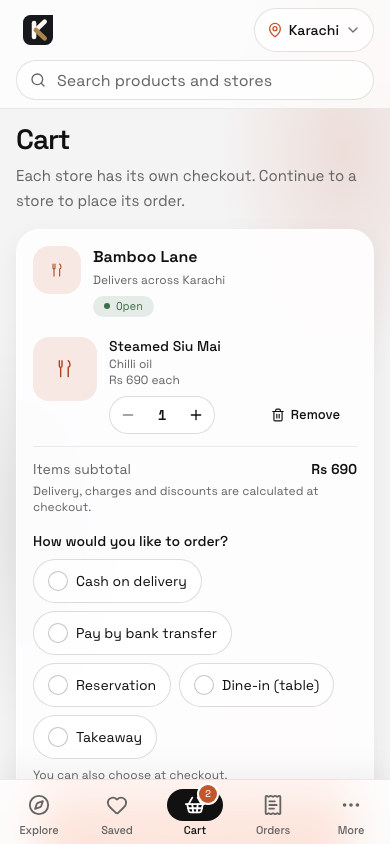
Marketplace Cart on a phone, grouped by store.