What this guide helps you do
Share your storefront through a printed QR design, choose its appearance and format, and distinguish store codes from order codes and app-install codes.
Before you start
Use your own store, or team or support-partner access that can view the store's design and exports. Every package can use the builder. Confirm the store has its public web address, because the QR code needs it.
Where to find it
Experiences → your store → Builder → QR code. Builder is the link under the quick QR code on the store overview, and it is also in the store's three-dot row menu on the Experiences list. The overview's quick QR dialog is useful for an instant on-screen scan; the QR code builder offers printable designs. Old QR codes bookmarks open the same builder. Owners, admins and eligible support partners see two tabs there: QR designs for this guide's steps and Krobr posters (see below). On a phone start from Experiences and the store overview, then scroll the builder: the preview comes right after the design gallery, followed by the design's settings and the download buttons.
Step by step
-
Open Builder for the correct store, choose QR code, and pick a design under Choose a design. The style chips (All, Minimal, Bold, Elegant, Restaurant, Photo, Classic, Local) narrow the gallery.
-
Review the editable design fields, such as a heading, text and Colors, where that design offers them. Keep text short enough to fit. On designs with a Logo slot choose your brand logo, Upload logo or Use initial instead; an uploaded logo needs a fixed 1:1 crop and Use crop. Upload background on designs that accept a Background image; the photo starts with Original and allows an optional crop. Uploads are used only in this browser session and are not saved.
-
Check the live preview. Maintain clear contrast and leave the QR code's surrounding blank area unobstructed.
-
Choose Download PDF for printing; it is the main export and keeps the design's true print size as a 300 DPI high-quality image, so its text cannot be selected. Use Download PNG for digital sharing; PNG is lossless.
-
Wait for the download to finish. If the QR code is unavailable, the download buttons stay disabled until the store has a valid public web address.
-
Print at a readable size without stretching the square code or placing it over a busy image.
-
Scan the printed result with a normal phone camera and confirm it opens this store's public storefront.
-
Keep an order's QR separate: an order QR opens a private order-tracking link, while the store QR opens the storefront.
Understand the choices
-
The code uses the store's permanent address so printed material survives later canonical-domain changes.
-
A design's editable options affect appearance, not which store it belongs to. Check the selected store before printing.
-
Nothing you change is saved. Reloading the page or leaving the builder resets your text, colors and uploads, so download before you leave.
-
A storefront must be available for a scan to show customers the live store. The QR itself does not publish an offline store.
Krobr shop posters
In the QR builder, business owners, admins and assigned support partners can open the Krobr posters tab. A support partner also needs Theme View and Exports View for this store. Ordinary invited teammates do not see this tab.
- Choose one of the ten A4 designs. Print preview shows the selected layout with the store name, permanent storefront link and shop QR. Public Visit address and phone appear when those details are enabled; missing or hidden details are omitted.
- Check Krobr promotion link. Support-partner downloads use that partner's signup referral link. Owner and admin downloads use krobr.com, even when the owner has a support partner. The main QR always opens the store.
- Select Download PDF. The download is one 210 × 297 mm A4 page at 300 DPI, with no added page margin. Its shop and promotion links are also clickable. These marketing posters are available on every plan and do not consume the data-export allowance or change store content.
- Print at actual size. The artwork fills the PDF page; physical edge-to-edge printing requires a printer that supports borderless A4. Keep the QR's white surrounding area clear, then scan the printed result.
If QR generation is unavailable, download is disabled. Reload the page to retry. If PDF preparation fails, use Download PDF again. Controls follow your app language; the artwork uses its fixed English copy, including the bilingual scan design.
Check the result
The downloaded design opens the intended storefront when scanned, and the printed code stays sharp with enough white space around it.
If something goes wrong
-
Camera cannot scan: increase size, improve contrast, remove glare, and keep the QR square.
-
Scan opens an unavailable page: check the store's published status and package restrictions.
-
Download buttons are disabled: read the QR code unavailable message; the store needs a valid public web address first.
-
Export failed: try again once, or use a different browser; do not repeatedly press Download.
-
It opens one order: you printed an order code rather than the store's code.
Screenshots
These screenshots use demonstration data. Your names, amounts and available controls may differ. Current values on your own screen take priority.
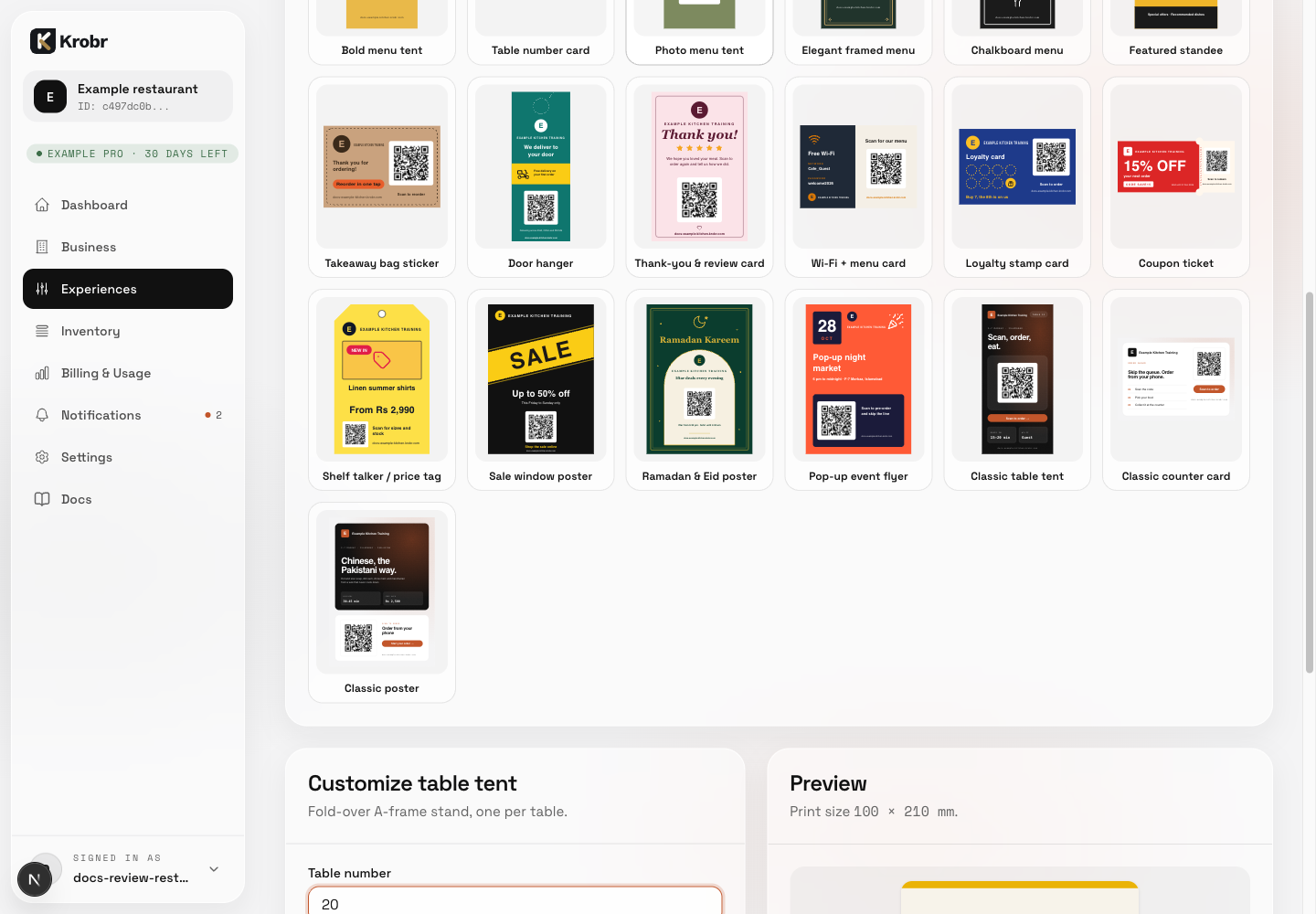
Create, download, and print a store QR code: find the controls in this example screen and follow the numbered instructions above.
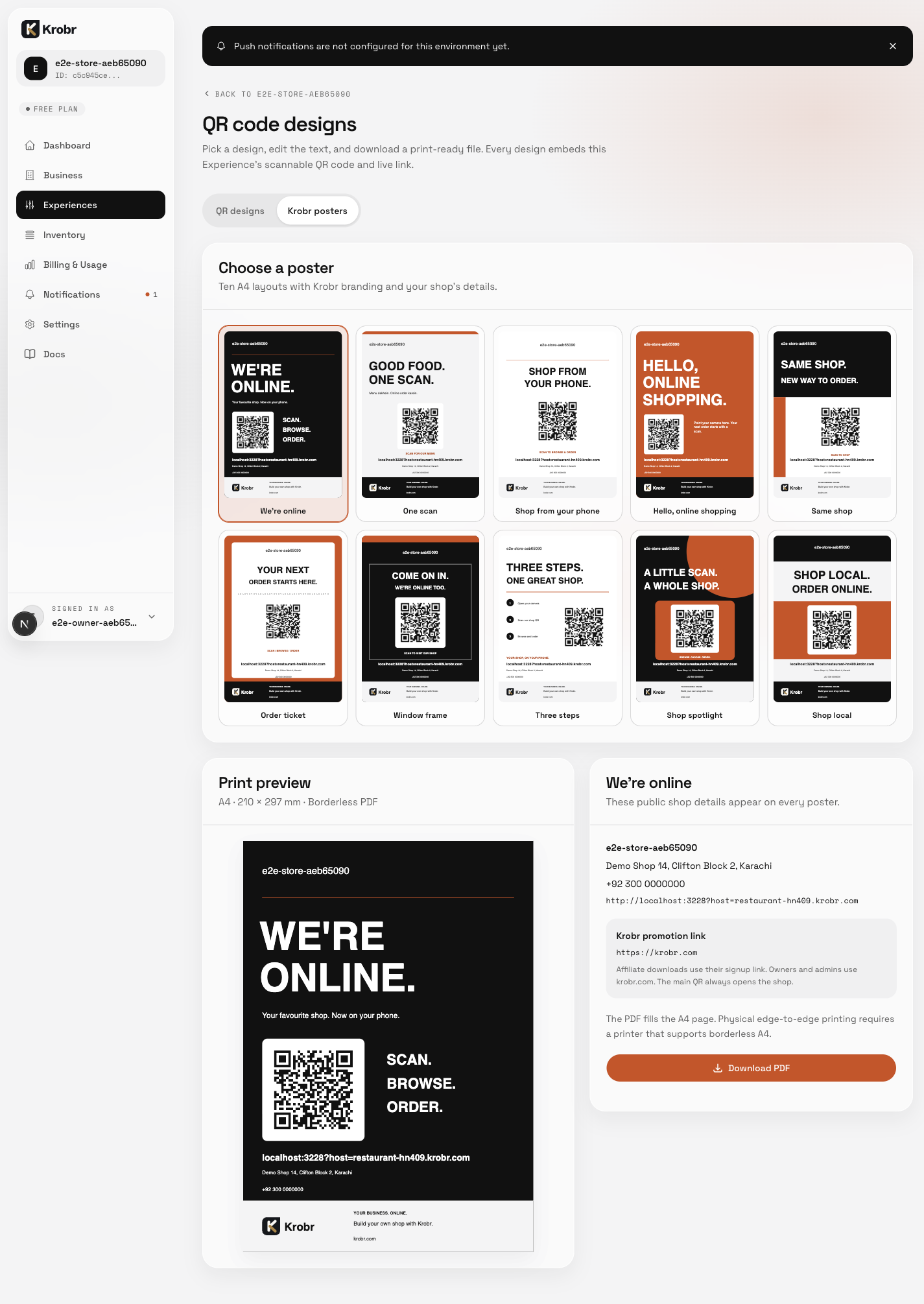
The Krobr posters tab offers ten A4 designs, a print preview and the promotion link used for this download. This authenticated demonstration owner uses krobr.com.